
Two-Factor Authentication
Two-Factor Authentication (2FA) adds a second verification step in addition to your password. When 2FA is enabled, you enter a code generated by an Authenticator App on your phone.
2FA helps protect the account even if your password is exposed. It is particularly important when you maintain a USDT balance, submit withdrawals, or invest on BrokerIG.
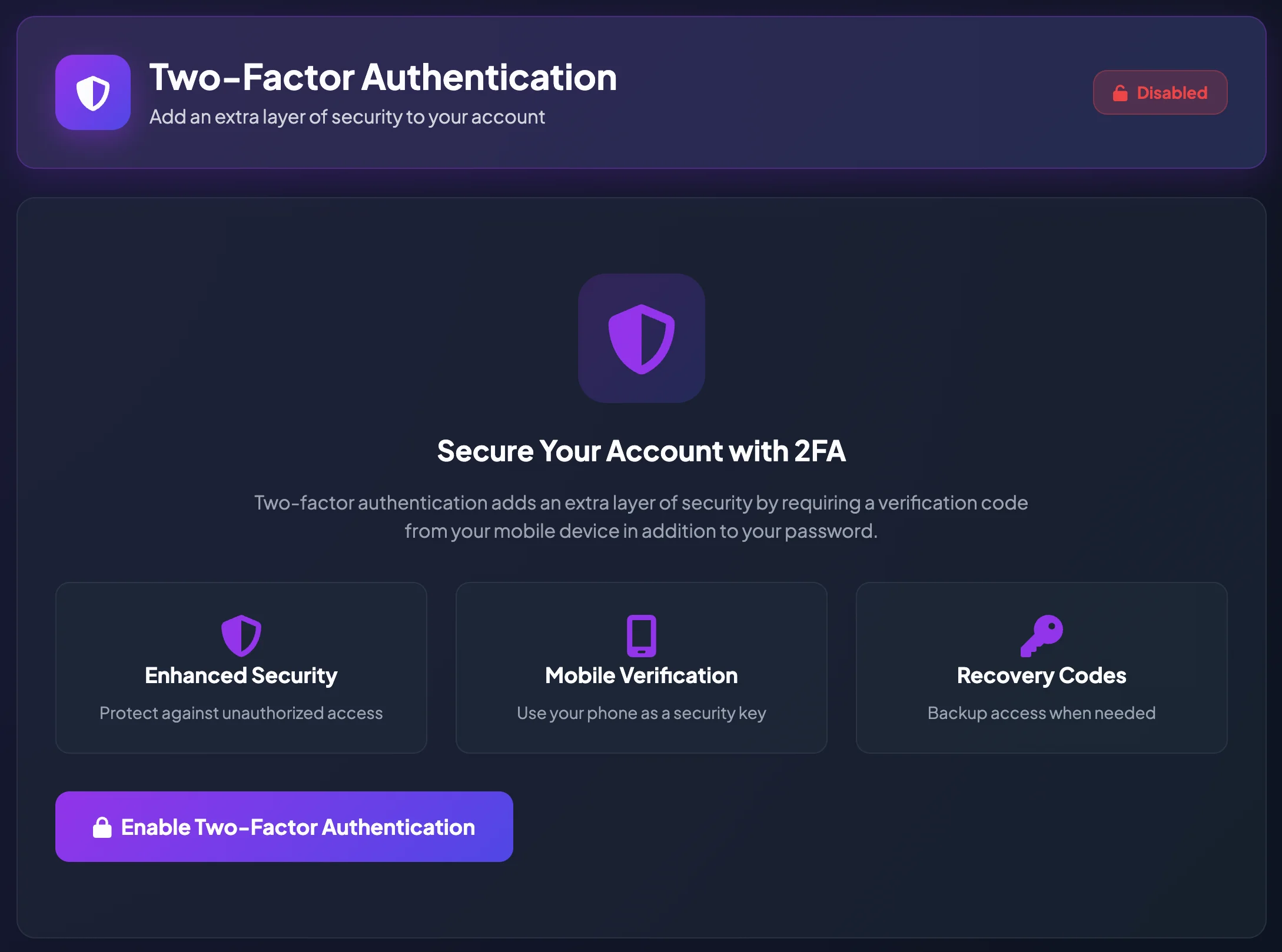
Which actions can 2FA protect?
Section titled “Which actions can 2FA protect?”BrokerIG may request an Authentication Code when you:
- Sign in.
- Submit or verify a withdrawal.
- Confirm a security-sensitive action.
- Disable 2FA.
- Change certain sensitive information.
For withdrawals, when 2FA is Disabled, BrokerIG may use an email OTP. When 2FA is Enabled, BrokerIG may use an Authentication Code instead of the email OTP during withdrawal verification.
Before enabling 2FA
Section titled “Before enabling 2FA”Prepare:
- A personal phone.
- An Authenticator App such as Google Authenticator, Microsoft Authenticator, Authy, or a compatible app.
- A stable connection.
- A secure place to store Recovery Codes.
- A trusted private device rather than a public device.
Do not enable 2FA unless you can safely store the Recovery Codes. They may be required if the phone is lost.
Enable 2FA
Section titled “Enable 2FA”- Open Settings.
- Select 2FA Security.
- Select the action to enable Two-Factor Authentication.
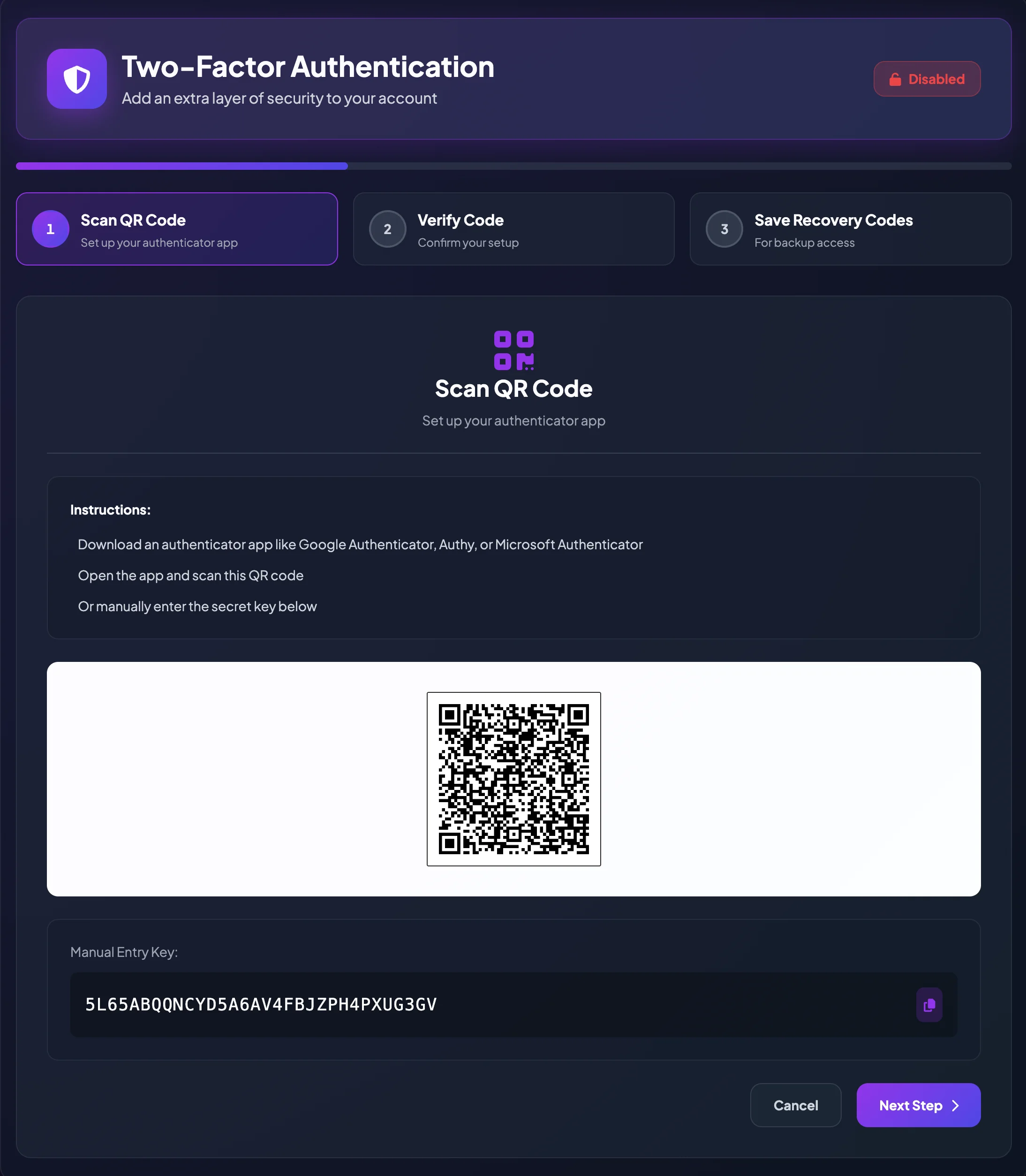
- BrokerIG displays a QR code and a Manual Entry Key.
- Open the Authenticator App on your phone.
- Add a new account.
- Scan the QR code or enter the Manual Entry Key.
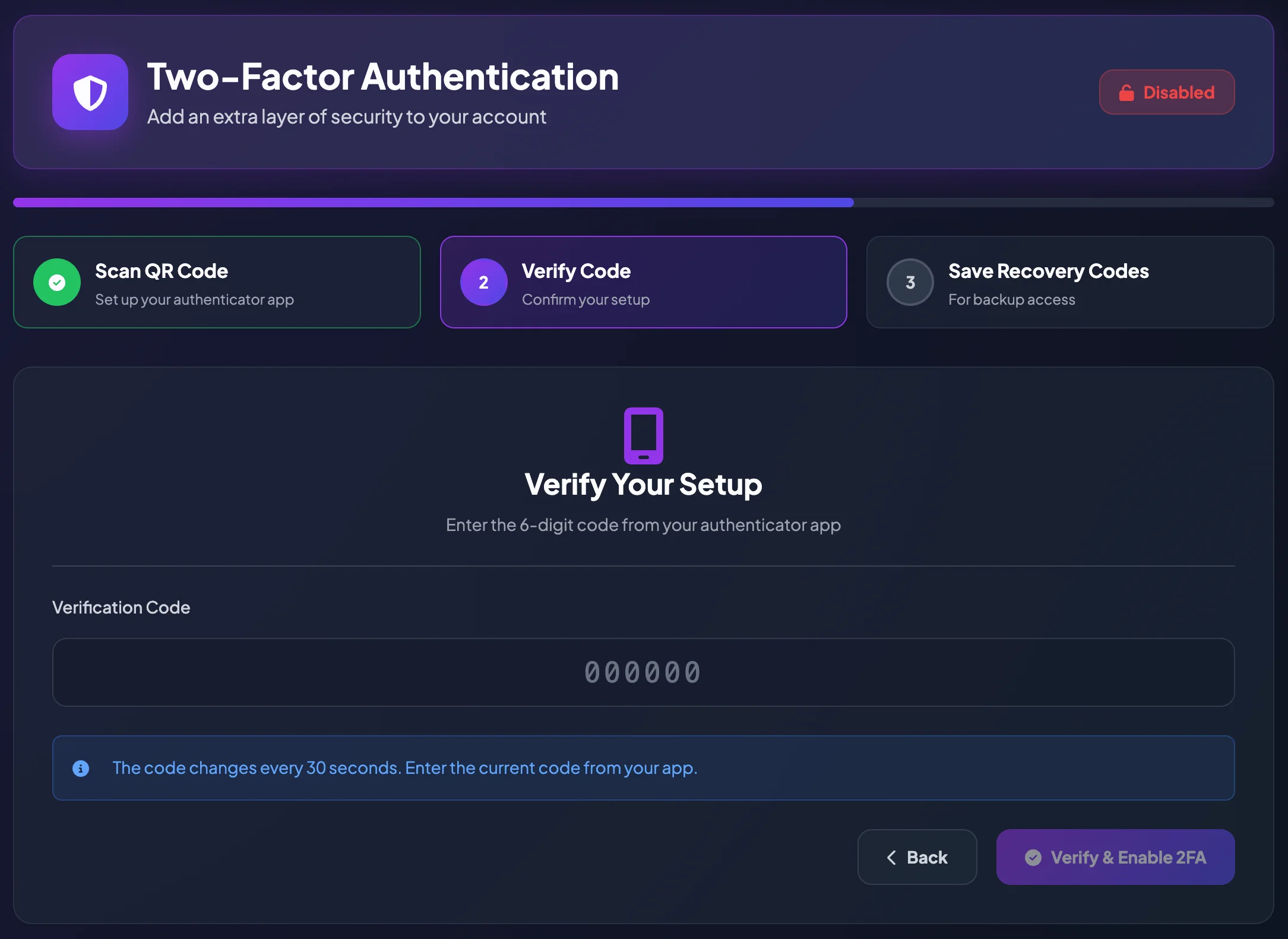
- The Authenticator App generates a 6-digit code that changes over time.
- Enter the current Verification Code in BrokerIG.
- Confirm the setup.
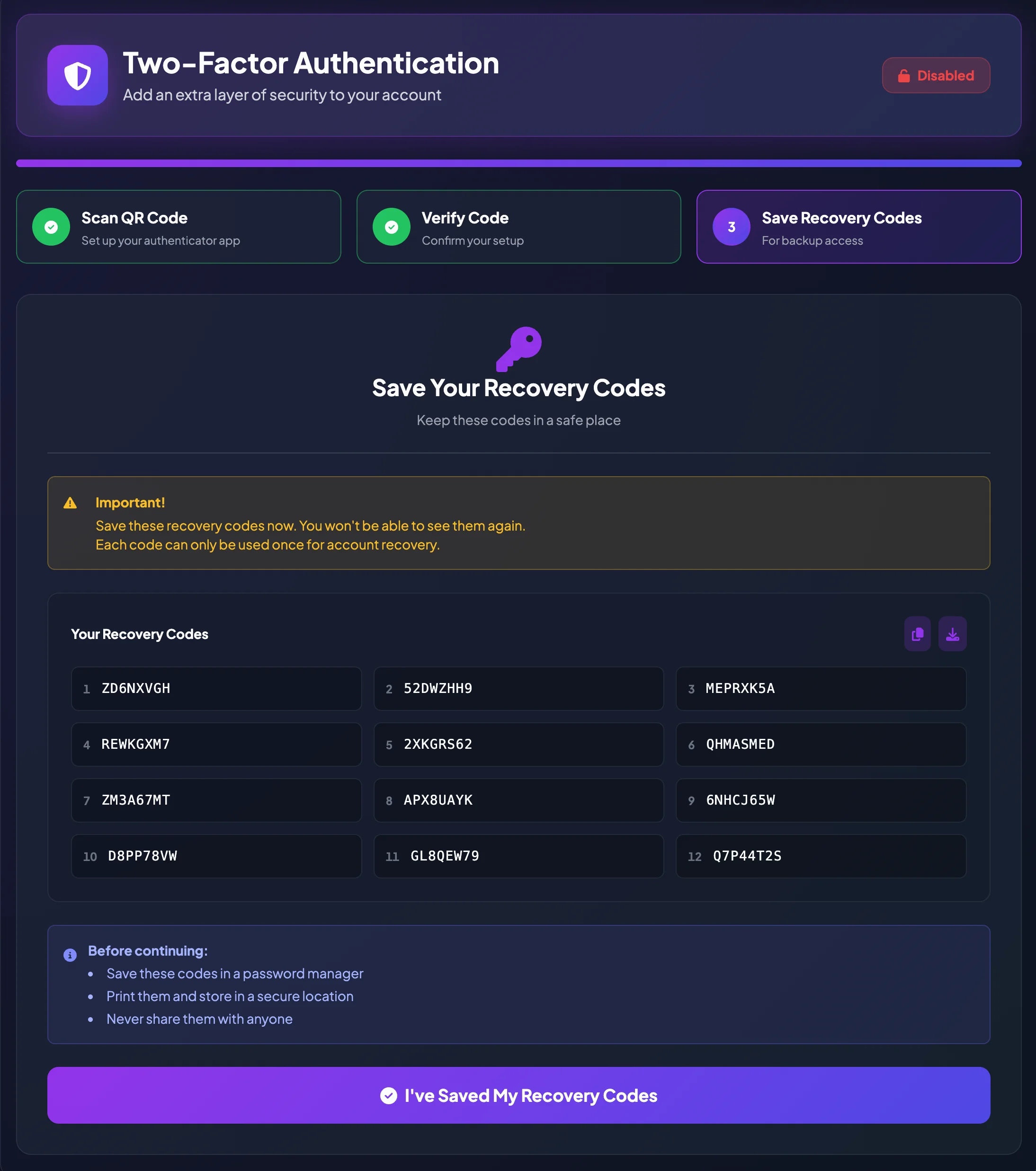
- Save the displayed Recovery Codes.
- Confirm that 2FA shows as Active or Enabled.
If the QR code cannot be scanned
Section titled “If the QR code cannot be scanned”- Locate the Manual Entry Key.
- Copy the key.
- In the Authenticator App, select the option to enter a setup key manually.
- Name the account
BrokerIG. - Paste the Manual Entry Key.
- Select a time-based code if the app asks for the code type.
- Save the entry and use the generated 6-digit code to verify the setup.
Use 2FA during sign-in
Section titled “Use 2FA during sign-in”- Open the Sign In page.
- Enter your Username or Email and Password.
- When BrokerIG requests 2FA, open the Authenticator App.
- Enter the current 6-digit Authentication Code.
- Complete sign-in.
Authentication Codes are valid for a short time. If the code is close to changing, wait for the next code before submitting it.
Use 2FA for a withdrawal
Section titled “Use 2FA for a withdrawal”A withdrawal normally includes these steps:
- Enter the withdrawal details.
- Confirm the network, token, destination address, and amount.
- Continue to verification.
- If 2FA is Enabled, enter the current Authentication Code.
- Review the withdrawal details.
- Confirm the withdrawal again.
- Monitor the status in Deposit/Withdrawal History.
If 2FA is Disabled, BrokerIG may use an email OTP. 2FA is generally safer because the Authentication Code is generated on your personal security device.
If the 2FA code is rejected
Section titled “If the 2FA code is rejected”- Confirm that you entered the newest code.
- Wait for the code to change and try again.
- Check that the phone’s time is correct and set automatically.
- Confirm that you selected the BrokerIG entry in the Authenticator App.
- Remove spaces or extra characters.
- If access to the Authenticator App is unavailable, use a Recovery Code during sign-in or contact Customer Support.
Important security guidance
Section titled “Important security guidance”- Never send an Authentication Code to another person.
- Do not screenshot the 2FA QR code and send it through chat.
- Do not store the Manual Entry Key with your password.
- Do not configure the Authenticator App on an untrusted device.
- Protect the phone with a screen lock or biometrics.
- Transfer 2FA before erasing or disposing of an old phone.