
Install the App on iPhone or iPad
On iPhone and iPad, use Safari to add BrokerIG to the Home Screen.
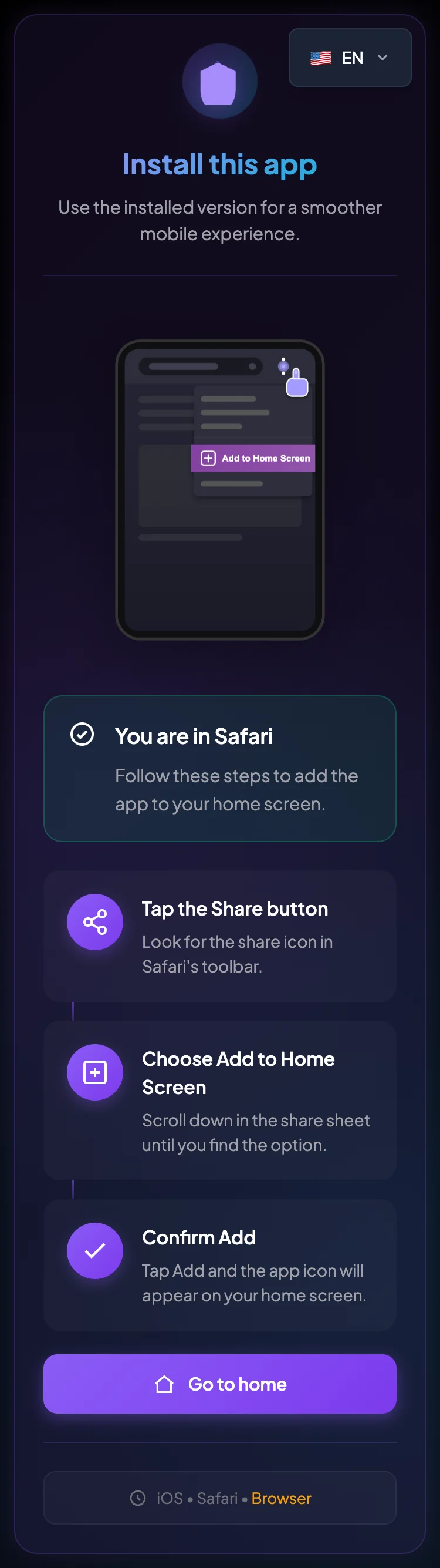
Install with Safari
Section titled “Install with Safari”- Open Safari on the iPhone or iPad.
- Visit
__PLATFORM_WEBSITE__or the Install page. - Wait for the page to finish loading.
- Tap the Share button.
- Scroll through the action list.
- Select Add to Home Screen.
- Review the displayed app name.
- Tap Add.
- Return to the Home Screen.
- Open the new BrokerIG icon.
The Share button may appear in a different position depending on the iOS or iPadOS version.
If Add to Home Screen is not shown
Section titled “If Add to Home Screen is not shown”- Confirm that the page is open in Safari, not an in-app browser.
- Scroll to the bottom of the Share sheet.
- Select Edit Actions if available.
- Add Add to Home Screen to the action list.
- Update iOS or iPadOS if the version is outdated.
- Reopen the Install page in Safari.
Differences between iOS and Android
Section titled “Differences between iOS and Android”| Item | Android | iPhone/iPad |
|---|---|---|
| Recommended browser | Chrome | Safari |
| Installation method | Three-dot menu → Install app/Add to Home screen | Share → Add to Home Screen |
| Icon location | Home screen or app drawer | Home Screen |
| Experience | App-like when fully supported | App-like when opened from the Home Screen icon |
Confirm that it was added successfully
Section titled “Confirm that it was added successfully”The installation is successful when:
- The BrokerIG icon appears on the Home Screen.
- Tapping the icon opens the platform.
- You do not need to enter the URL each time.
- The interface works correctly on the iPhone or iPad.
Why does the app still request Sign In?
Section titled “Why does the app still request Sign In?”This is normal when:
- The session expired.
- You signed out.
- Safari removed website data.
- The system requires a new sign-in for security.
Sign in again with your Username, Password, and 2FA code when requested.
Security on iPhone and iPad
Section titled “Security on iPhone and iPad”- Enable Face ID, Touch ID, or a device passcode.
- Do not share a signed-in device with another person.
- Do not store Recovery Codes in an unsecured screenshot.
- Do not open sign-in links from unknown sources.
- If the device is lost, change your password and review account security.
Remove BrokerIG from the Home Screen
Section titled “Remove BrokerIG from the Home Screen”- Press and hold the BrokerIG icon.
- Select Remove App or Delete Bookmark, depending on the version.
- Confirm the action.
Removing the icon does not delete your account or remove account data from the BrokerIG system.