
Deposit and Withdrawal History
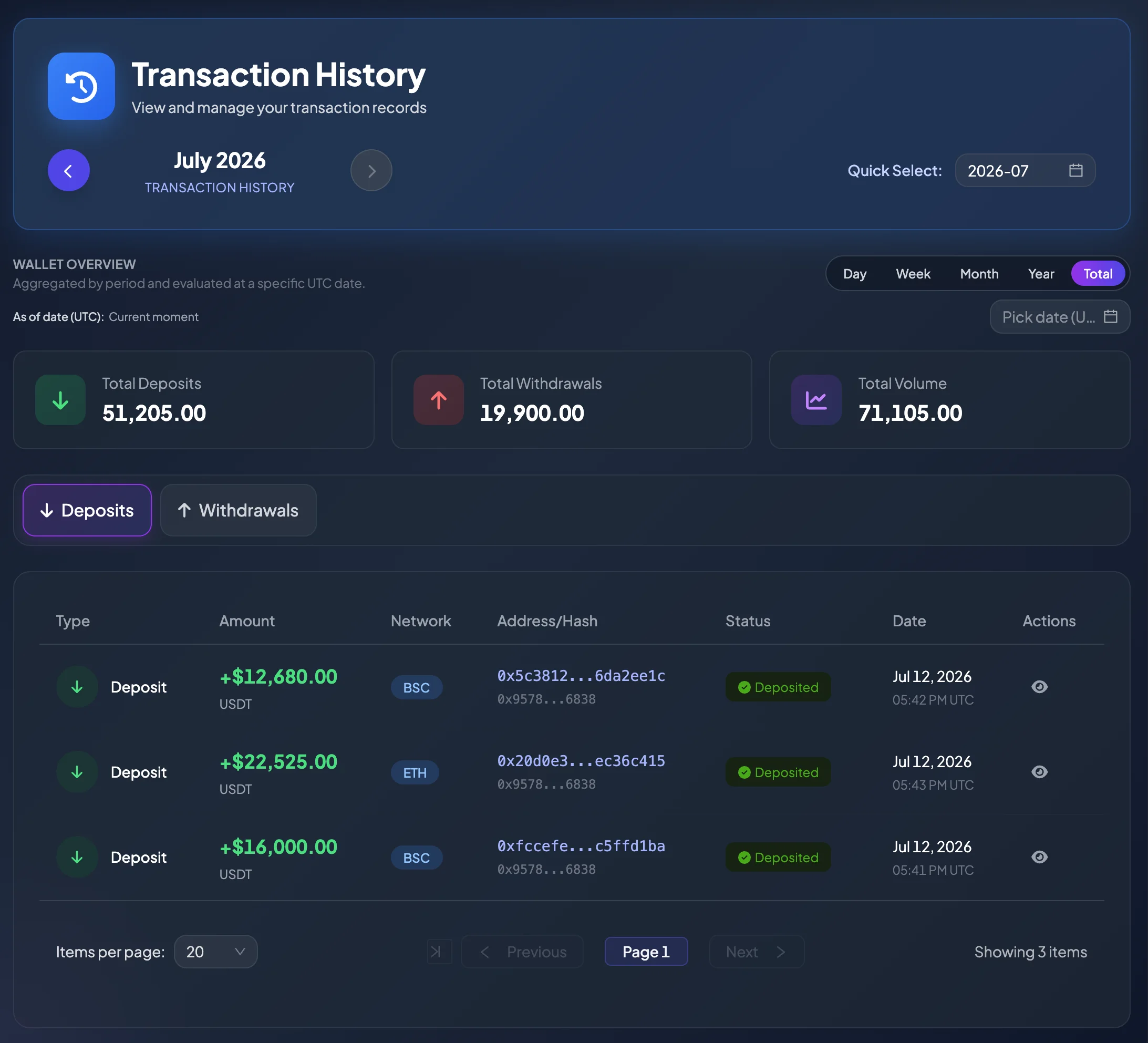
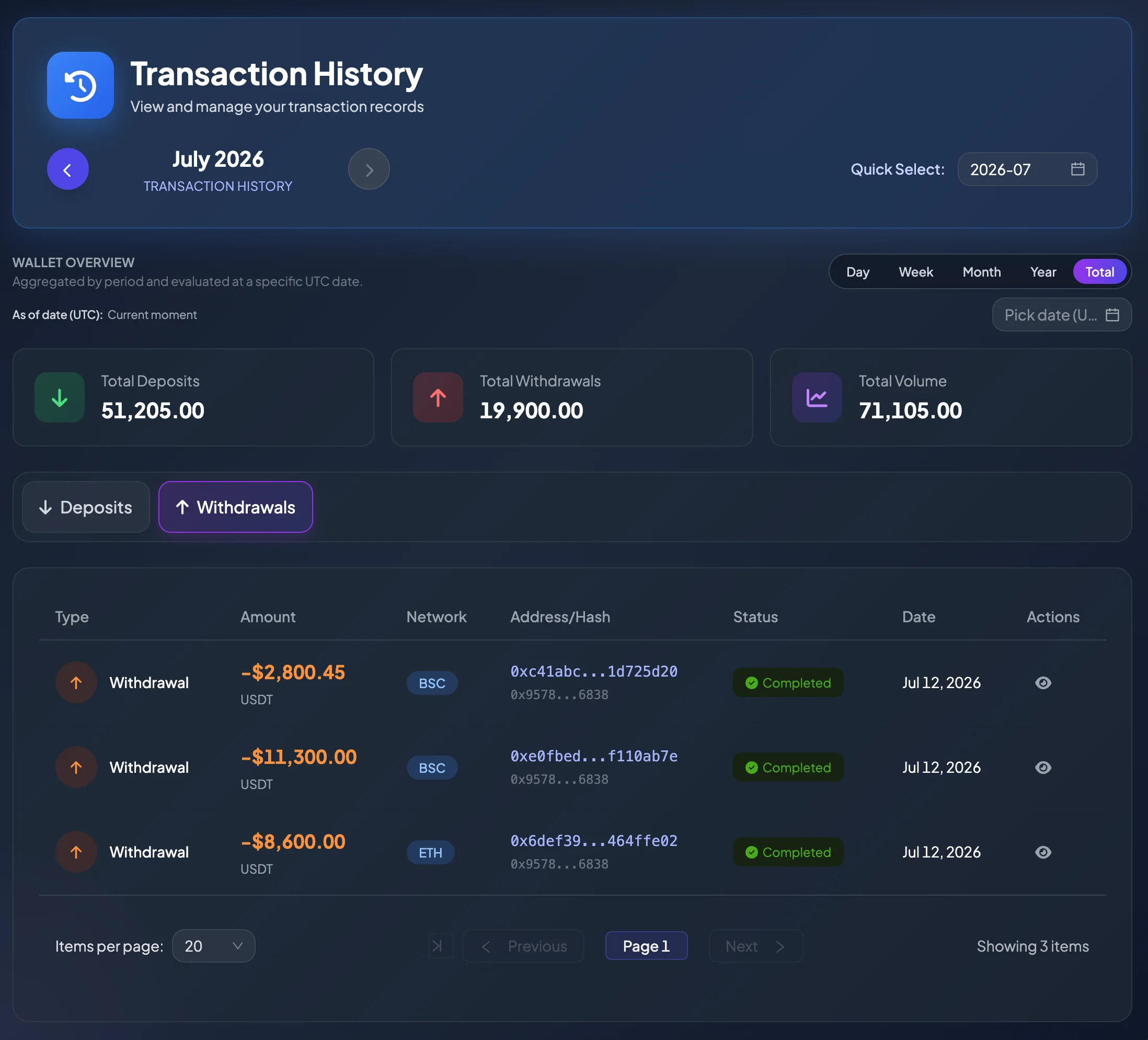
The Deposit and Withdrawal History page helps you track USDT deposits and withdrawals in your account. This is the first page to check after depositing, withdrawing, or reconciling a blockchain transaction with your BrokerIG balance.
This page focuses on wallet transactions such as:
- Depositing USDT into your account.
- Withdrawing USDT to an external wallet.
- Checking the ETH or BSC network.
- Checking an address, TxHash, and processing status.
- Reviewing Total Deposits, Total Withdrawals, and Total Volume for a selected period.
When should you open Deposit and Withdrawal History?
Section titled “When should you open Deposit and Withdrawal History?”Open this page when:
- You want to know whether a deposit has been recorded.
- You want to see whether a withdrawal is Processing or Completed.
- You need a TxHash for a blockchain explorer.
- You want to review total deposits and withdrawals for a day, week, month, year, or all time.
- You need to reconcile a transaction before contacting Support.
What do the summary cards mean?
Section titled “What do the summary cards mean?”The page may display period-based summary cards. These cards provide a quick view of funds moving into and out of your wallet during the selected period.
| Metric | Meaning |
|---|---|
| Total Deposits | Total USDT successfully deposited during the selected period. |
| Total Withdrawals | Total USDT withdrawn during the selected period. |
| Total Volume | Total deposit and withdrawal value combined during the selected period. |
For example, if you select the current month, the cards reflect deposits and withdrawals during that month. If you select Total, the system displays cumulative data for the entire available history.
Select the reporting period
Section titled “Select the reporting period”You may be able to review the history by:
- Day
- Week
- Month
- Year
- Total
Some metrics are evaluated by UTC date. When reconciling a personal transaction, account for timezone differences, especially for transactions submitted near the end of your local day.
How to read the transaction table
Section titled “How to read the transaction table”The table commonly includes:
| Column | How to interpret it |
|---|---|
| Type | Shows whether the transaction is a Deposit or Withdrawal. |
| Amount | The USDT amount. Deposits are normally positive; withdrawals may be negative or displayed with a minus sign. |
| Network | The blockchain network, such as ETH or BSC. |
| Address/Hash | The related wallet address or blockchain transaction hash. |
| Status | The current processing status. |
| Date | The transaction date and time. |
| Actions | Opens transaction details. |
How to read transaction statuses
Section titled “How to read transaction statuses”| Status | Meaning |
|---|---|
| Deposited | The deposit was recorded and credited to your balance. |
| Completed | The deposit or withdrawal finished successfully. |
| Processing | The system is waiting for confirmations or processing the request. |
| Failed | The transaction did not complete. For withdrawals, a refund event may be created if funds were previously deducted. |
The exact status label may vary in the interface, but the primary meaning remains: pending, successful, or failed.
View transaction details
Section titled “View transaction details”Select View Details on a transaction row to review additional information.
Details may include:
- Internal Transaction ID.
- Transaction Type.
- USDT Amount.
- Network.
- Wallet Address.
- TxHash.
- Status.
- Date and time.
Reconcile with Balance History
Section titled “Reconcile with Balance History”Deposit and Withdrawal History shows wallet transaction status. To see how the transaction affected your balance, open Balance History.
Examples:
- A completed deposit creates a Deposit event in Balance History.
- A withdrawal creates a Withdrawal event that decreases the balance.
- If a withdrawal fails and is refunded, Balance History may show Withdrawal Failed - Refunded.
Find a transaction by TxHash
Section titled “Find a transaction by TxHash”If you have a TxHash from an external wallet or exchange, compare it with the TxHash shown in history. The TxHash identifies a specific blockchain transaction.
When contacting Support, the TxHash is the most important reference for reconciling a deposit or withdrawal.
If a deposit does not appear in history
Section titled “If a deposit does not appear in history”If you sent USDT but the transaction does not appear:
- Check the TxHash on a blockchain explorer.
- Confirm that the token was USDT.
- Confirm that the ETH or BSC network matched the BrokerIG Deposit Address.
- Wait for the required confirmations if the transaction is recent.
- Use Claim Missing Deposit on Deposit USDT when the transaction is confirmed but still not recorded.
If a withdrawal has not reached the receiving wallet
Section titled “If a withdrawal has not reached the receiving wallet”If a withdrawal was submitted but the receiving wallet has not received the funds:
- Check the status in Deposit and Withdrawal History.
- If a TxHash is available, check it on the appropriate blockchain explorer.
- Confirm that the receiving wallet supports the selected ETH or BSC network.
- Review the expected Processing Time on the Withdraw page.
- Contact Support if the request exceeds the expected time or the status is unclear.