Quick History and Result Popup
The navbar includes Trade History, which lets you review recent investments without leaving the Invest page. When a session ends, the result popup indicates whether an investment was profitable.
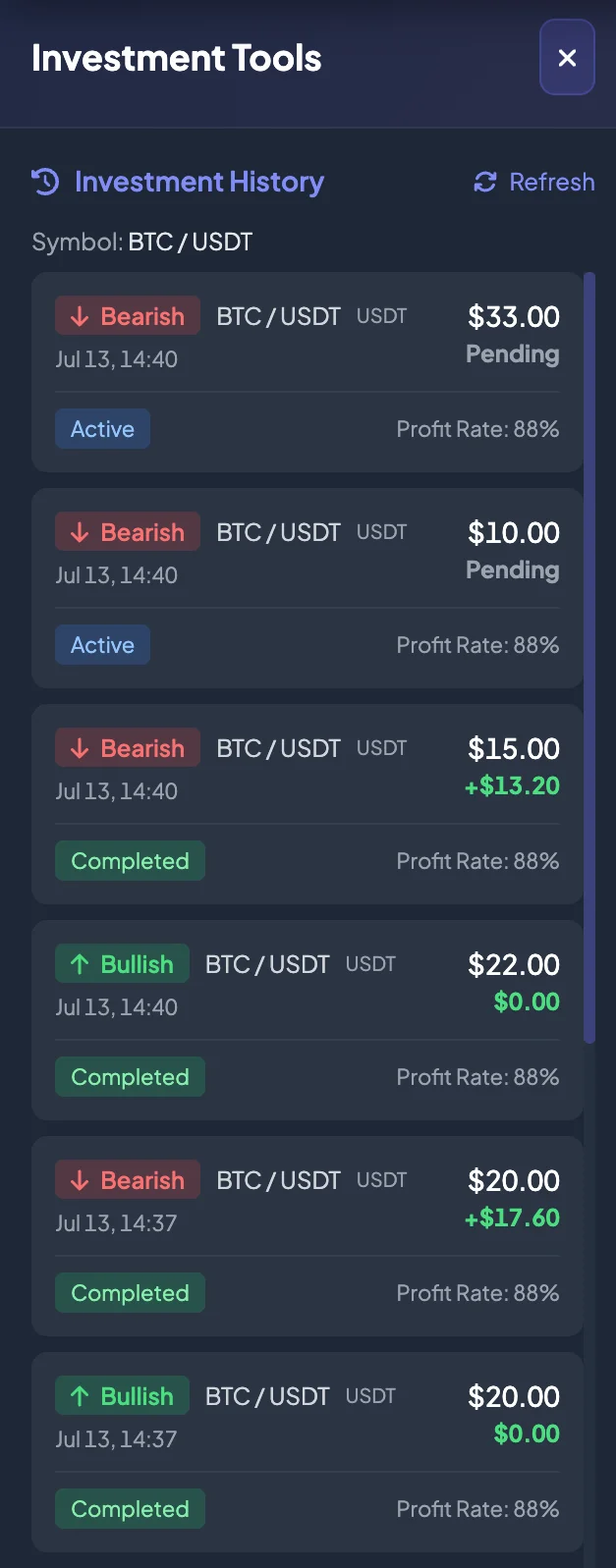
What is quick history used for?
Section titled “What is quick history used for?”Use quick history to:
- Confirm that a new investment was recorded.
- Review the selected Investment Session.
- Review the Bullish or Bearish direction.
- Review the Investment Amount.
- Review whether the investment is pending or settled.
- Review the result after the Finish line.
- Avoid accidentally placing too many investments in one session.
When should you open Trade History?
Section titled “When should you open Trade History?”Open it when:
- You have just selected Bullish or Bearish.
- An order tag is not visible on the chart.
- You are not sure whether the investment was recorded.
- You placed several investments in one session.
- The Account Balance changed and you want to identify the cause.
- The result popup did not appear automatically.
Common statuses
Section titled “Common statuses”| Status | Meaning |
|---|---|
| Pending | The investment was recorded, but the session has not been settled. |
| Profitable | The direction was correct and the investment produced a profitable result. |
| Not Profitable | The investment did not produce a profitable result. |
| Refunded | The amount was returned under the applicable system conditions. |
| Failed | The investment could not be processed or was rejected. |
The exact interface labels may vary, but the underlying states are similar.
Result popup
Section titled “Result popup”At the Finish line, the system may display a result popup containing:
- Market Pair.
- Investment Session.
- Bullish or Bearish direction.
- Investment Amount.
- Entry price.
- Settlement price.
- Profit Rate.
- Profit or loss result.
- Account Balance after processing.
If several investments were placed in the same session, the popup may summarize them or display them separately, depending on the interface.
How does the balance update?
Section titled “How does the balance update?”In Demo mode:
- The Demo Balance changes.
- The real Account Balance is not affected.
- The Demo Balance cannot be withdrawn.
In Real mode:
- A profitable investment may increase the real Account Balance according to the Profit Rate.
- A non-profitable investment may not credit a return and may reduce the balance according to the product flow.
- A refunded investment may restore the amount.
After settlement, reconcile the result in Direct Investment History and Balance History.
When the result popup does not appear
Section titled “When the result popup does not appear”If the session ended but the popup did not appear:
- Open Trade History.
- Check the investment status.
- Check the network connection.
- Wait a few seconds for synchronization.
- Open the full Direct Investment History page.
- Take screenshots and contact Support if the data remains unclear.
Information to send to Support
Section titled “Information to send to Support”Prepare:
- Account email.
- Market Pair.
- Investment Session in
HH:mm UTC. - Investment Amount.
- Bullish or Bearish direction.
- Demo mode or Real mode.
- Screenshots of the chart, Trade History, and balance.
- Time when the issue occurred.