
F1 Commission Management
F1 Commission Management lets you view and configure commission allocation for your direct F1 members.
F1 members are users who registered directly with your Referral Code. When a commission pool is available for distribution, you can allocate a percentage to individual F1 members.
The 100% commission-pool principle
Section titled “The 100% commission-pool principle”F1 allocation is calculated within your 100% commission pool.
Example:
| Member | Allocation |
|---|---|
| F1 A | 20% |
| F1 B | 15% |
| F1 C | 10% |
| Your Remaining | 55% |
| Total | 100% |
The more you allocate to F1 members, the smaller Your Remaining becomes. Review Total Allocated to F1 and Your Remaining before saving.
Three weekly states
Section titled “Three weekly states”The feature uses three weekly views:
- Historical Week
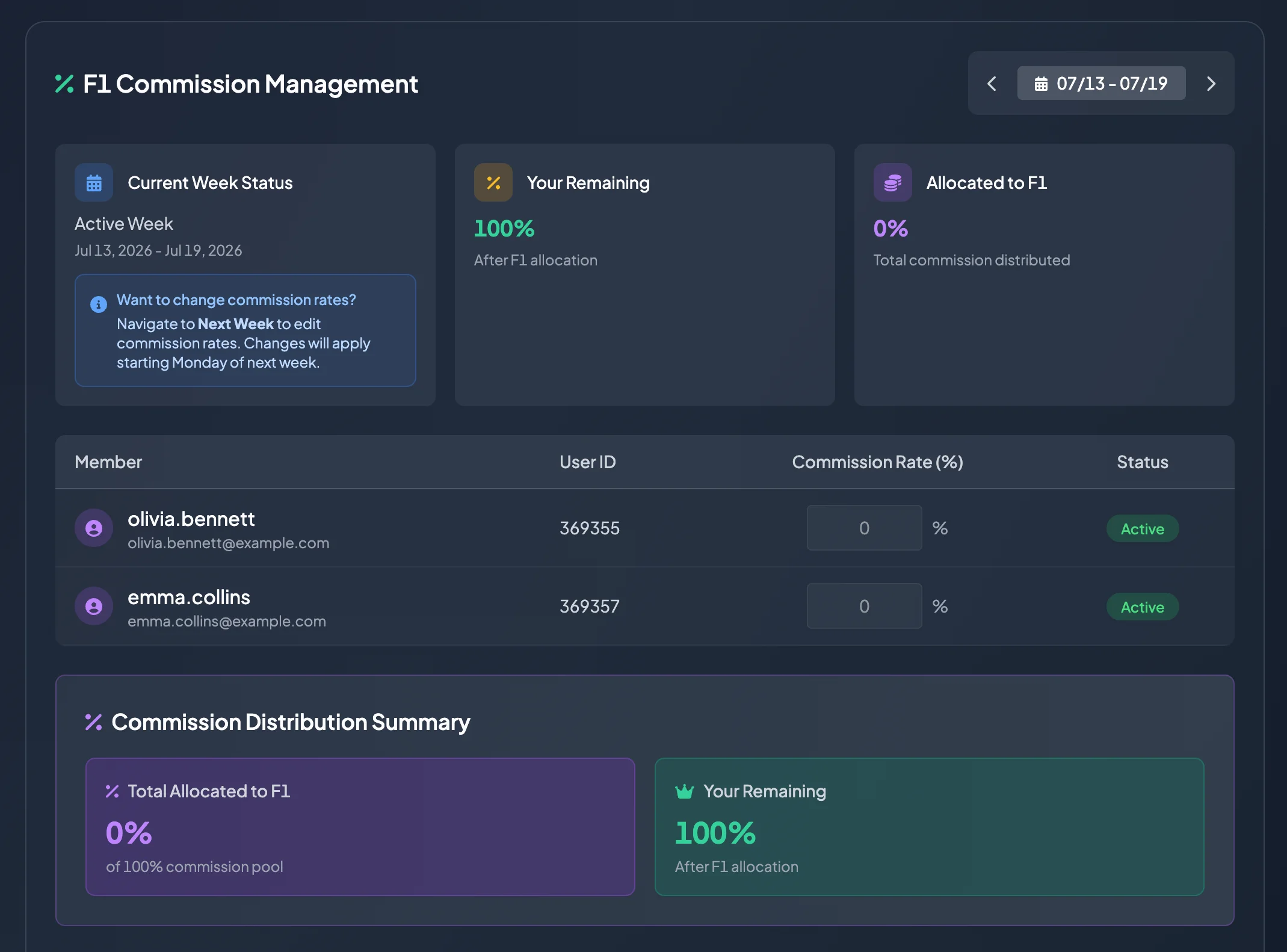
- Active Week
- Next Week (Editable)
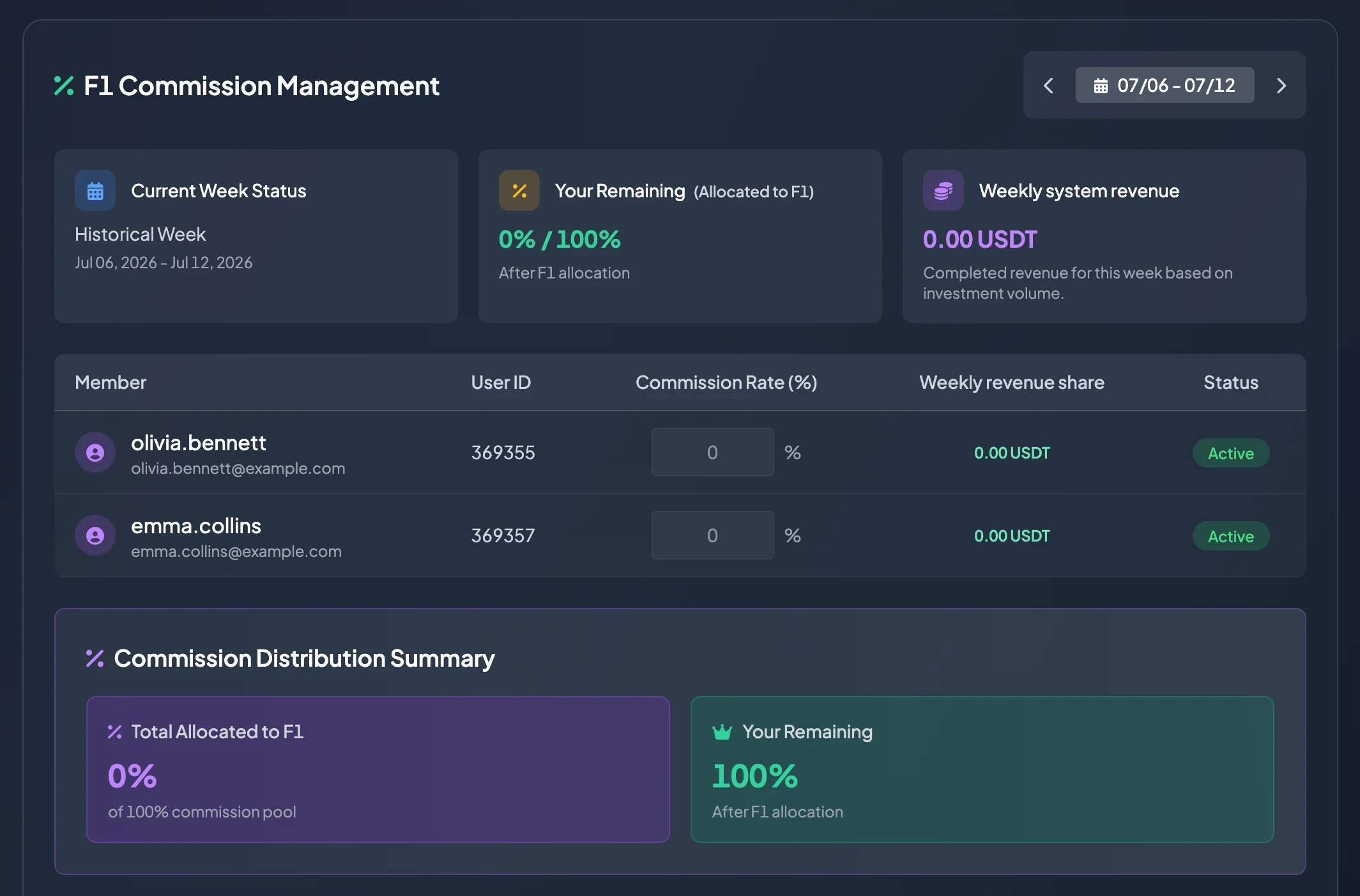
Historical Week
Section titled “Historical Week”A Historical Week is a past commission configuration that has already been applied. Use it for review and reconciliation.
You cannot edit an allocation that was already active in the past.
A historical record may include:
- Active From.
- Total Allocated.
- Number of F1 Members.
- Updated At.
Active Week
Section titled “Active Week”Active Week shows the allocation currently in effect for this week’s cycle.
Use this view to understand the current configuration. The displayed commission or weekly revenue may still be provisional until the system completes the weekly settlement.
Active Week means:
- The allocation is currently being used.
- It can help estimate the expected distribution.
- It does not necessarily represent a commission already credited.
- The system settles and distributes eligible weekly revenue according to the current policy.
Next Week (Editable)
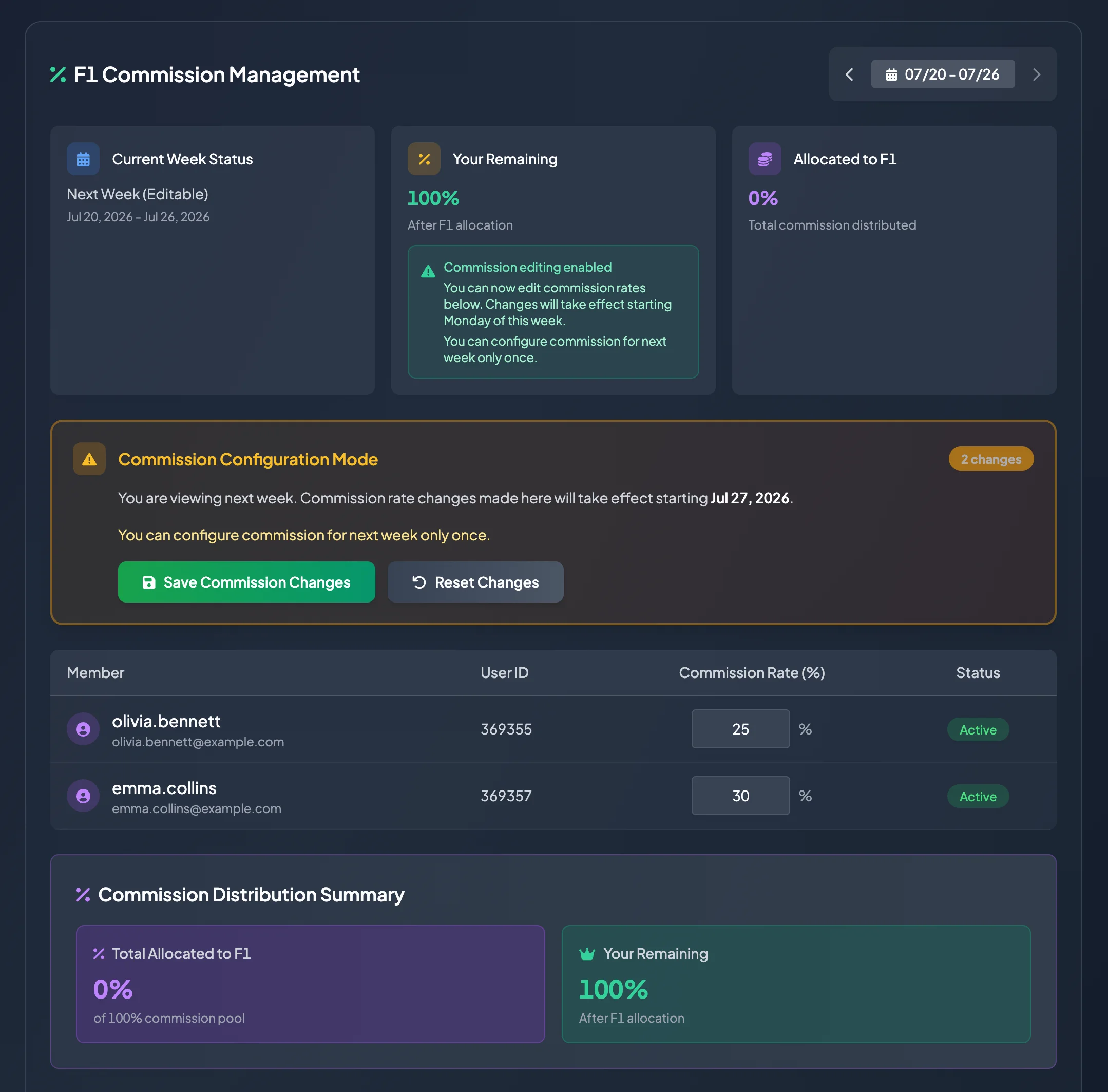
Section titled “Next Week (Editable)”Next Week (Editable) is where you configure a new allocation for the next cycle.
Changes made here take effect from the next configured weekly period, normally starting on Monday according to the system schedule.
How to configure next week’s commission rates
Section titled “How to configure next week’s commission rates”- Open Partners.
- Select Affiliate or Affiliate Program.
- Open Network Tree.
- Find F1 Commission Management.
- Select Next Week (Editable).
- Enter the Commission Rate (%) for each F1 member.
- Review Total Allocated to F1.
- Review Your Remaining.
- Select Save Commission Changes.
Do not allocate rates only by intuition. Consider contribution, active status, network quality, member growth, and your network-development strategy.
How to read the F1 member table
Section titled “How to read the F1 member table”| Column | Meaning |
|---|---|
| Member | Name or email of the direct F1 member. |
| User ID | Unique identifier of the member. |
| Commission Rate (%) | Percentage of the commission pool allocated to that member. |
| Status | Indicates whether the member is Active or Inactive. |
Consider the member’s current status before assigning a rate.
How to read Commission Distribution Summary
Section titled “How to read Commission Distribution Summary”| Item | Meaning |
|---|---|
| Total Allocated to F1 | Total percentage allocated across all F1 members. |
| Your Remaining | The percentage of the commission pool that remains after F1 allocation. |
If Total Allocated to F1 is 30%, Your Remaining is 70%.
Validation rules
Section titled “Validation rules”The system may prevent saving when:
- A Commission Rate is below 0% or above 100%.
- Total commission allocation exceeds 100%.
- You are not viewing Next Week.
- The next-week configuration was already saved.
- Commission data cannot be loaded or saved.
Use Reset Changes to discard unsaved edits and return to the previous values.
When should you change allocation?
Section titled “When should you change allocation?”You may consider changing a rate when:
- An F1 member makes a clear contribution to member acquisition.
- The F1 member’s downstream network becomes more active.
- You want to encourage continued network development.
- You need to revise the internal reward policy for your branch.
Important notes
Section titled “Important notes”- Historical Week allocations cannot be edited.
- Active Week is normally view-only.
- Next Week can be configured only once for each cycle.
- Total Allocated to F1 cannot exceed 100%.
- Weekly commissions are normally settled at the end of the cycle; values shown before settlement may be provisional.
- Save a screenshot or internal record when you need to reconcile an allocation later.