Change Password
Change your password periodically and immediately whenever you suspect that the current password has been exposed.
Your password is the first security layer protecting the account. If you deposit or withdraw USDT, use Direct Investment, or participate in Entrusted Investment, use a strong password and enable 2FA.
When should you change your password?
Section titled “When should you change your password?”Change it when:
- The account was created with a temporary password.
- The password was shared with another person.
- You signed in on a public or shared device.
- You received an unusual sign-in alert.
- You lost a phone or computer that stored the password.
- You suspect that your email or Telegram account was accessed without permission.
- You are preparing to deposit a significant balance or submit a withdrawal.
Password requirements
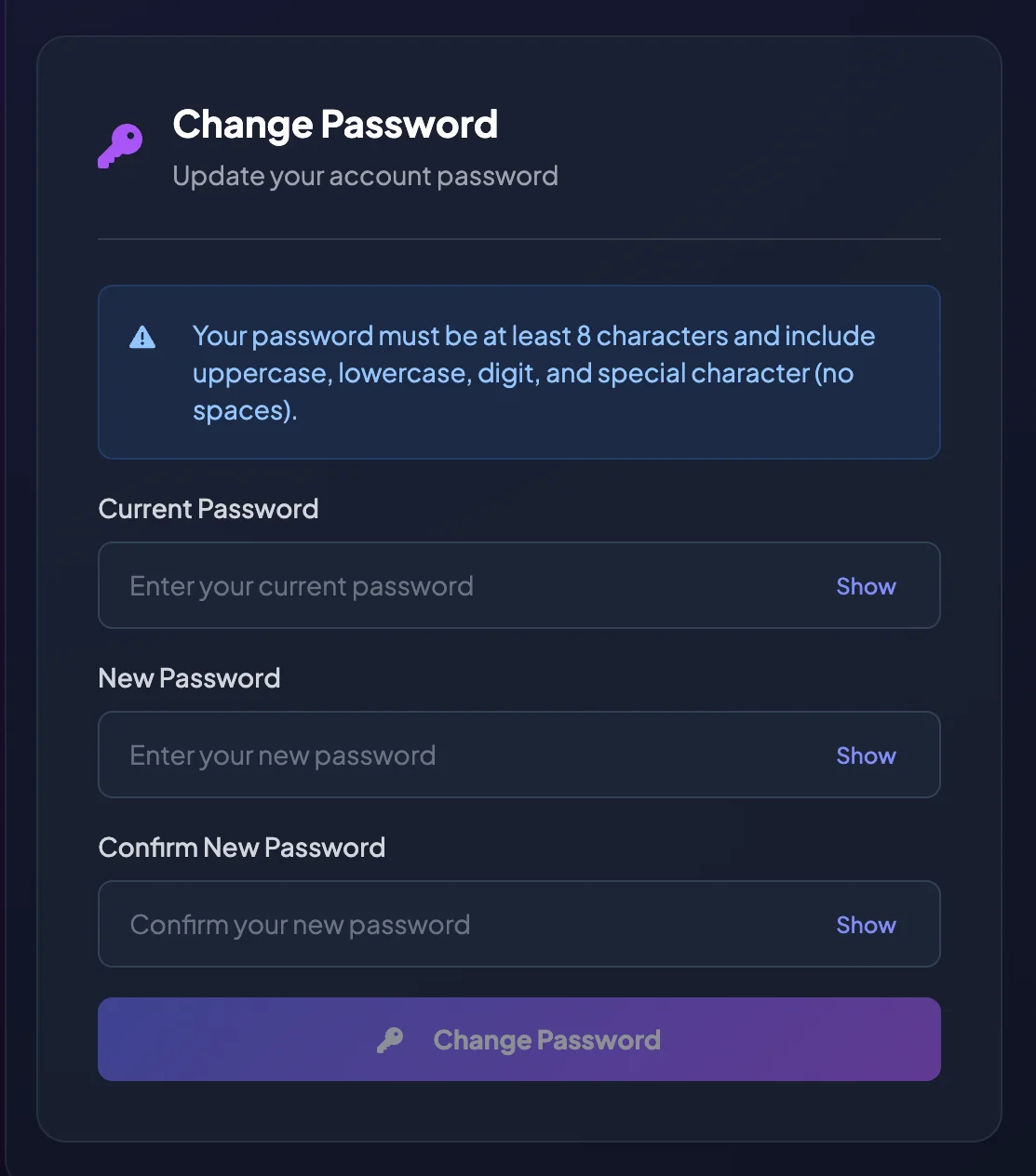
Section titled “Password requirements”A new password must contain at least:
- 8 characters.
- One uppercase letter.
- One lowercase letter.
- One digit.
- One special character.
- No spaces.
A strong structure combines:
Uppercase + lowercase + digit + special character + sufficient length
Avoid using:
- Your date of birth.
- Your phone number.
- Your Username.
- Your Email.
- A password already used on another platform.
- Predictable strings such as
12345678,Password123!, orqwerty.
Change your password
Section titled “Change your password”- Open Settings.
- Select Profile.
- Find Change Password.
- Enter your Current Password.
- Enter the New Password.
- Enter it again under Confirm New Password.
- Review the Password Strength indicator, if shown.
- Select Change Password.
- Sign in again if BrokerIG requests it.
After changing your password
Section titled “After changing your password”You should:
- Sign out on devices you no longer use.
- Update the saved entry in your password manager.
- Enable 2FA if it is Disabled.
- Check email and Telegram for security alerts.
- Never send the new password through chat, email, or a screenshot.
If you forgot the current password
Section titled “If you forgot the current password”You cannot change the password directly from the Profile page if you do not know the Current Password.
Use Forgot Password on the Sign In page, or contact Customer Support at __SUPPORT_EMAIL__.
When contacting Customer Support, provide only the account details needed for identification, such as your Email, User ID, and the time the issue occurred. Never send an OTP, Authentication Code, or Recovery Code.
Password, 2FA, and Recovery Codes
Section titled “Password, 2FA, and Recovery Codes”| Component | Purpose |
|---|---|
| Password | Used to sign in to your account. |
| 2FA | An additional verification code generated by an Authenticator App. |
| Recovery Code | A backup code used if the 2FA device is unavailable. |
A strong password reduces the risk of guessing or credential attacks. 2FA provides another layer of protection if the password is exposed.