
Recovery Codes and Disabling 2FA
When you enable 2FA, BrokerIG provides Recovery Codes. These backup codes can be used if you lose your phone, lose access to the Authenticator App, or cannot obtain an Authentication Code.
Save the Recovery Codes immediately after enabling 2FA. Do not wait until the security device is lost because you may be unable to sign in at that point.
What are Recovery Codes for?
Section titled “What are Recovery Codes for?”They can restore access when:
- The phone containing the Authenticator App is lost.
- The Authenticator App is deleted accidentally.
- You change phones before transferring 2FA.
- The Authenticator App stops working.
- You cannot sign in because an Authentication Code is unavailable.
Each Recovery Code can only be used once.
Store Recovery Codes safely
Section titled “Store Recovery Codes safely”Store them somewhere that:
- Only you can access.
- Is separate from your password.
- Is not an unsecured chat or email account.
- Has a backup in case your primary device is lost.
| Storage method | Recommendation |
|---|---|
| A trusted password manager | Recommended when protected by a strong password and separate 2FA. |
| Printed paper stored securely | Recommended when the physical copy is protected. |
| An encrypted file | Recommended if you can manage the encryption key safely. |
| A screenshot in the phone photo library | Not recommended. |
| A Telegram or personal chat message | Not recommended. |
What should you never do with Recovery Codes?
Section titled “What should you never do with Recovery Codes?”Never:
- Send them to Customer Support.
- Screenshot and send them through chat.
- Save them in the same file as your account password.
- Ask another person to store them for you.
- Paste them into an unknown website.
- Use them while you still have normal access to the Authenticator App.
Use a Recovery Code during sign-in
Section titled “Use a Recovery Code during sign-in”If an Authentication Code is unavailable:
- Open the Sign In page.
- Enter your account information and Password.
- When BrokerIG requests 2FA, select the option to use a Recovery Code.
- Enter an unused Recovery Code.
- Complete sign-in.
- Open Settings → 2FA Security.
- Configure 2FA on the new device.
- Save the new set of Recovery Codes if BrokerIG generates one.
Treat a Recovery Code as used after submitting it, and do not try to use it again.
When should you disable 2FA?
Section titled “When should you disable 2FA?”Disable 2FA only when:
- You need to move it to a new phone.
- The Authenticator App is malfunctioning and must be configured again.
- You suspect that the 2FA secret has been exposed.
- Customer Support directs you through an official recovery process.
Do not disable 2FA simply because it adds an extra sign-in step. It is an important protection when the account has a balance or is used for withdrawals.
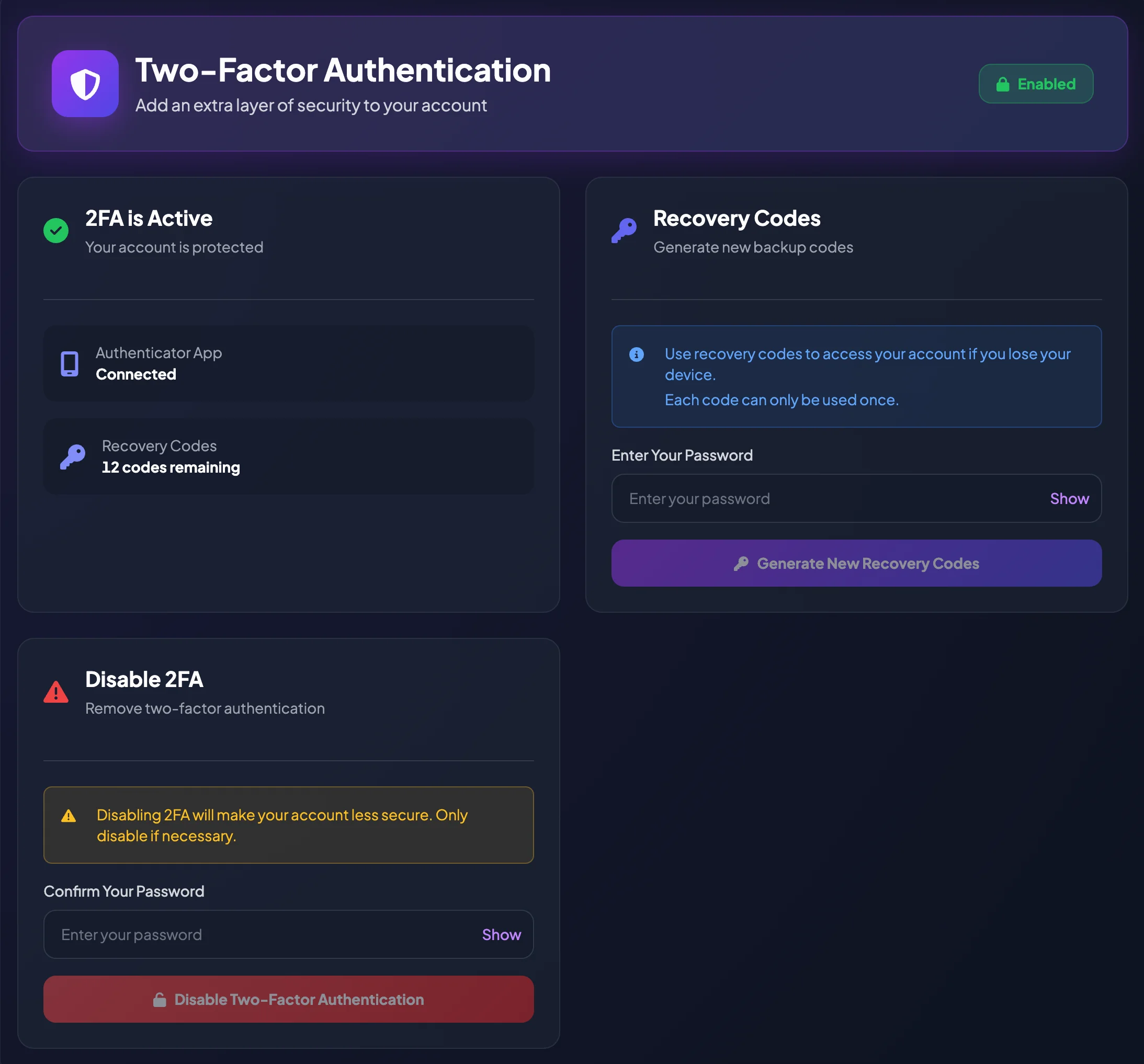
Disable 2FA
Section titled “Disable 2FA”- Sign in to your account.
- Open Settings.
- Select 2FA Security.
- Select Disable 2FA.
- Enter your current Password to confirm.
- Confirm again if prompted.
- Verify that Two-Factor Auth now shows Disabled.
After disabling 2FA
Section titled “After disabling 2FA”The account is less secure after 2FA is disabled.
You should:
- Enable 2FA again on the new device as soon as possible.
- Change your password if the previous device may have been accessed.
- Review sign-in history if BrokerIG provides it.
- Check Telegram and email for security alerts.
- Avoid withdrawals until you are confident that the account is secure.
If both 2FA and Recovery Codes are unavailable
Section titled “If both 2FA and Recovery Codes are unavailable”Contact Customer Support at __SUPPORT_EMAIL__.
Prepare:
- Your account Email.
- Your User ID, if known.
- The approximate registration time or valid identifying information.
- A description of the issue.
- Proof of account ownership if requested through the official process.
Manual recovery may take time because Customer Support must confirm that you are the legitimate account owner.