
Consultant Campaign Management
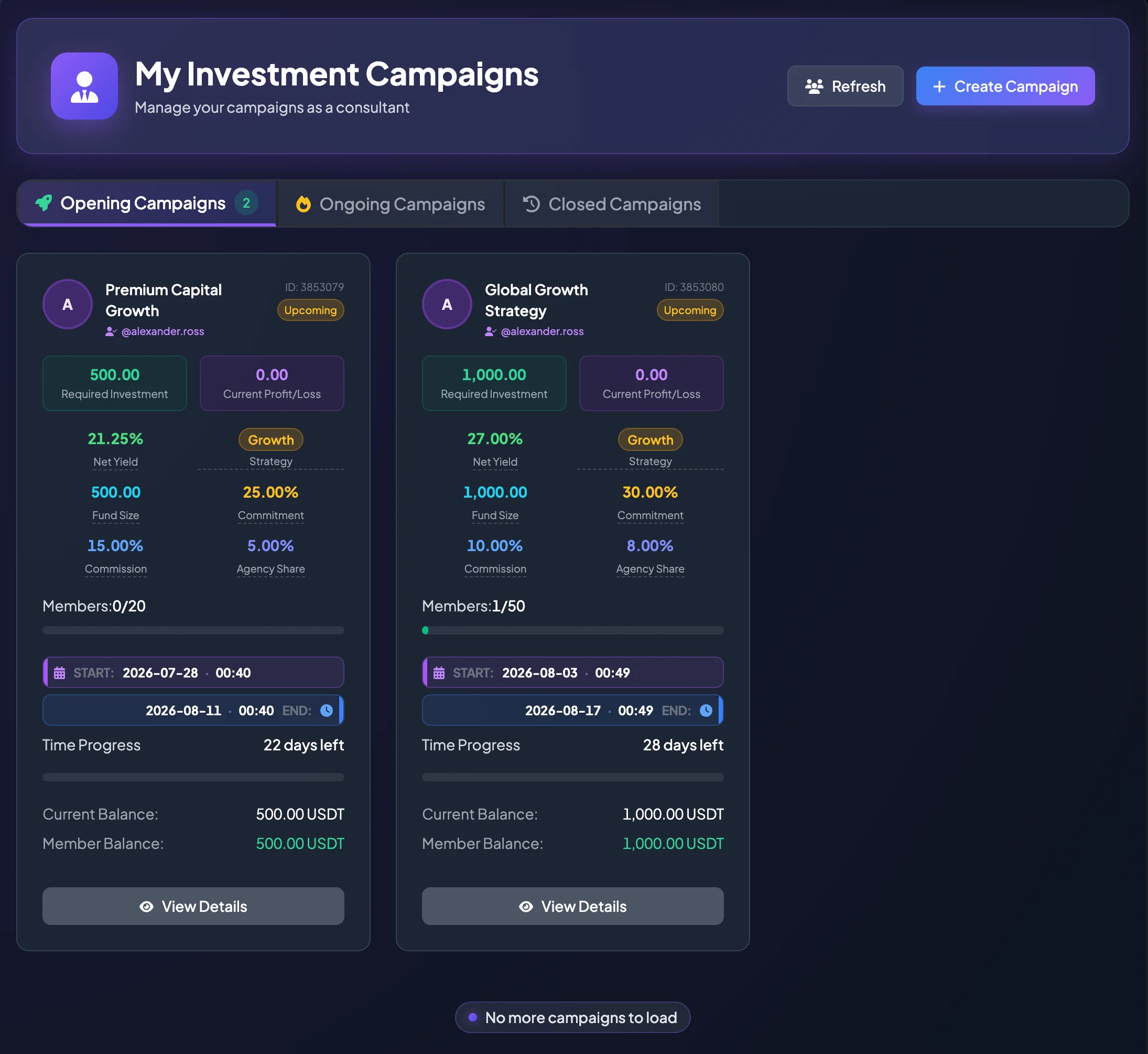
The My Investment Campaigns management page for Consultants shows campaigns created by the current Consultant account. Use this page to manage campaigns where you are the campaign owner, review campaign status, open campaign details, refresh the list, and start creating a new campaign.
This page is different from the member-facing My Investment Campaigns page. The member page shows campaigns you joined as an investor. The Consultant management page shows campaigns you created as the Consultant owner.
Page header
Section titled “Page header”The page header identifies the Consultant campaign-management area and may include these actions:
- Refresh: reloads the campaign list and status counts.
- Create Campaign: opens the five-step Create Campaign wizard.
Use Refresh after creating or updating a campaign when the list has not updated yet.
Campaign tabs
Section titled “Campaign tabs”The page groups owned campaigns into three tabs.
Opening Campaigns
Section titled “Opening Campaigns”Opening Campaigns shows campaigns you created that are still accepting members or scheduled to open.
Use this tab to review:
- Campaigns with Upcoming or Opening status.
- Member count compared with maximum capacity.
- Required Investment.
- Commitment, Net Yield, Commission, and Agency Share.
- Start and End time.
- Remaining time before the campaign starts or closes.
If a campaign is still open, monitor whether it is filling as expected before the Start time.
Ongoing Campaigns
Section titled “Ongoing Campaigns”Ongoing Campaigns shows campaigns you created that have already started.
Use this tab to monitor:
- Current Profit/Loss.
- Current Balance.
- Member Balance.
- Time Progress.
- End time.
- Campaign status and member participation.
For Ongoing Campaigns, values may change while the campaign is active. Do not treat interim Profit/Loss as the final campaign result.
Closed Campaigns
Section titled “Closed Campaigns”Closed Campaigns shows campaigns you created that have ended or are no longer active.
Use this tab to:
- Review completed campaign results.
- Reconcile member participation and balances.
- Open details for historical campaigns.
- Check final status before responding to member or support questions.
Read an owned campaign card
Section titled “Read an owned campaign card”Each campaign card summarizes the main information for a campaign you created:
| Field | Meaning |
|---|---|
| Campaign Name | Name of the campaign you created. |
| ID | Campaign identifier for support or reconciliation. |
| Status | Current campaign state, such as Upcoming, Opening, Ongoing, or Closed. |
| Required Investment | Amount each member must allocate to join. |
| Current Profit/Loss | Current or recorded campaign result. |
| Net Yield | Projected member return after Consultant Commission. |
| Strategy | Campaign strategy label derived from campaign parameters. |
| Fund Size | Campaign capital based on member participation. |
| Commitment | Expected or committed return rate used for projections. |
| Commission | Consultant Commission Rate. |
| Agency Share | Portion of Consultant Commission shared with eligible agencies. |
| Members | Joined members compared with maximum capacity. |
| Start / End | Campaign schedule in the displayed timezone. |
| Time Progress | Timeline progress or remaining time. |
| Current Balance | Current campaign balance when available. |
| Member Balance | Balance associated with participating members when available. |
Select View Details to open the complete campaign details.
Create a new campaign
Section titled “Create a new campaign”To create a campaign from this page:
- Sign in with an approved Consultant account.
- Open My Investment Campaigns in the Consultant area.
- Select Create Campaign.
- Complete the five-step Create Campaign wizard.
- After the campaign is created, return to this page and select Refresh if the new campaign is not visible.
Newly created campaigns normally appear in Opening Campaigns or as Upcoming, depending on their Start time and platform status rules.
When to contact support
Section titled “When to contact support”Contact Support when:
- A campaign you created does not appear in this page.
- The campaign status is different from the expected state.
- Member count, balance, or Profit/Loss looks inconsistent.
- Create Campaign is missing even though your Consultant role is approved.
- Campaign Details cannot be opened.
Provide the Campaign ID, Consultant account email, screenshots, and the time when the issue occurred.