
Notification Settings
The Notifications page allows you to enable Device Notifications (Web Push) and manage Telegram notifications on BrokerIG.
Device Notifications are delivered through a supported browser or installed app. Telegram notifications are sent by the BrokerIG bot after you link a Telegram account.
Notification channels
Section titled “Notification channels”| Channel | Meaning |
|---|---|
| Device Notifications (Web Push) | Notifications delivered by the browser or supported device. |
| Telegram | Notifications delivered by the Telegram bot after an account is linked. |
You can use both channels at the same time. For example, enable Device Notifications for browser alerts and link Telegram to receive alerts through the bot on your phone.
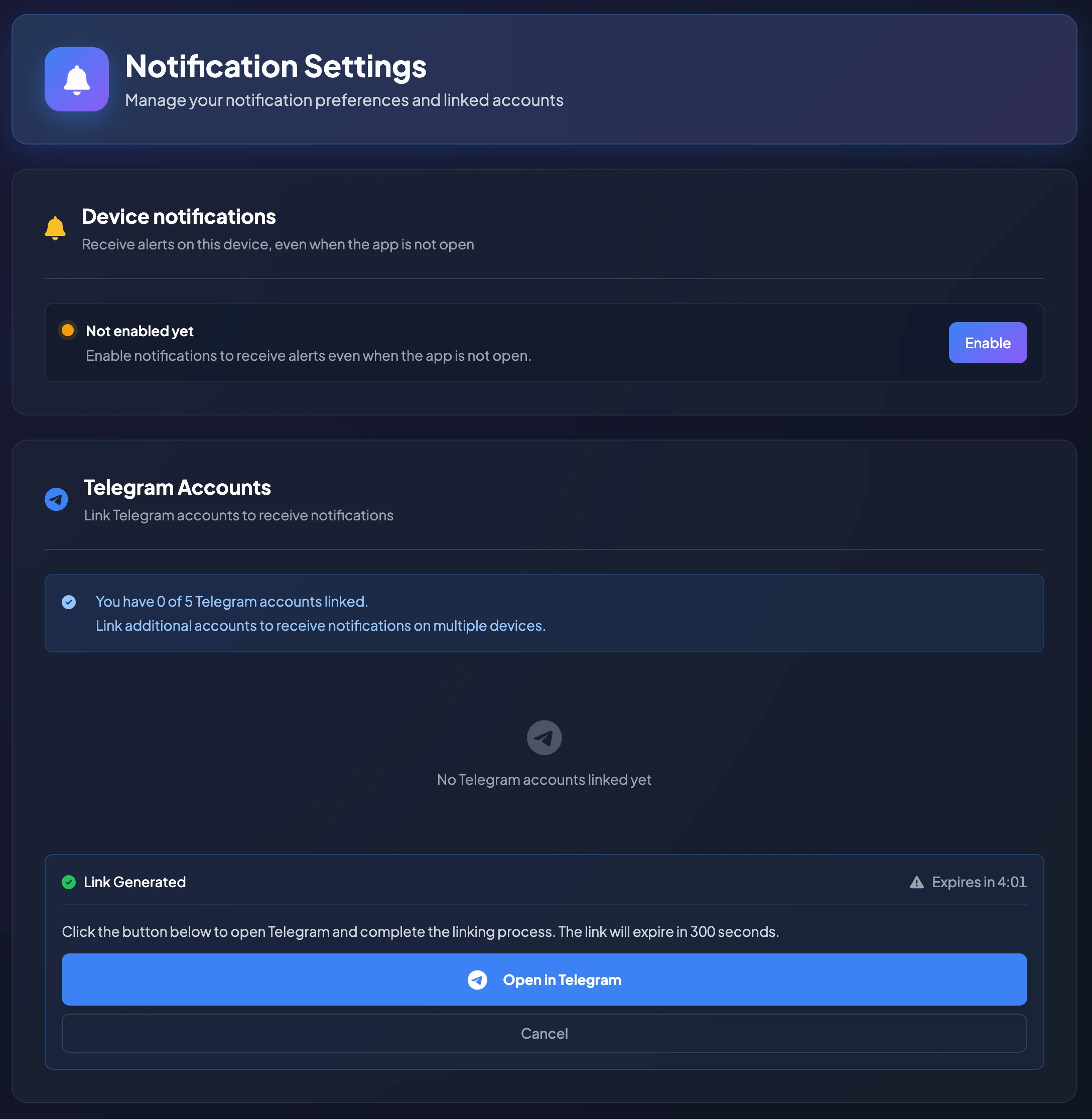
Enable Device Notifications
Section titled “Enable Device Notifications”- Open Settings.
- Select Notifications.
- Select Enable under Device notifications.
- When the browser asks for notification permission, select Allow.
After permission is granted, the current browser on the current device can receive BrokerIG notifications.
Device notification permission is granted separately for each browser and device. When you use BrokerIG on another device, you may need to enable notifications again.
If the browser does not request permission
Section titled “If the browser does not request permission”Possible reasons include:
- Permission was already granted.
- Notifications were previously blocked.
- The device or operating system is blocking browser notifications.
- The current browser does not fully support Web Push.
If you previously selected Block, open the browser or device settings and allow notifications for the BrokerIG website.
Disable Device Notifications
Section titled “Disable Device Notifications”Device Notifications may need to be disabled from the browser or device settings rather than directly from the BrokerIG Notifications page.
Open the site’s notification permissions, find BrokerIG, and change the setting to Block, Do not allow, or the equivalent option provided by the browser.
Disabling notifications on one device does not affect other devices where permission has already been granted.
If Device Notifications are not received
Section titled “If Device Notifications are not received”Check that:
- You selected Enable on BrokerIG.
- The browser has permission to send notifications.
- The BrokerIG website is not blocked in site settings.
- Do Not Disturb or Focus mode is not suppressing notifications.
- The operating system allows the browser or installed app to display notifications.
- You are using the same browser in which notifications were enabled.
If permission was previously blocked, grant it again in the browser settings.
Security and privacy
Section titled “Security and privacy”Notifications may contain balance information, deposit or withdrawal status, and security alerts.
On a shared device, consider hiding notification content on the lock screen or enabling notifications only on a personal device.
Do not share screenshots containing account, balance, or transaction information with unrelated people.