
Reset Your Password
If you forget your password or cannot sign in, use the Reset Password flow to create a new password.
When should you reset your password?
Section titled “When should you reset your password?”Reset the password when:
- You forgot it.
- The previous password no longer works.
- You suspect it has been exposed.
- You entered an incorrect password multiple times.
- You need to change it but cannot access the account.
- You received a security alert related to your account.
If you can still sign in, you may change the password from Profile Settings instead.
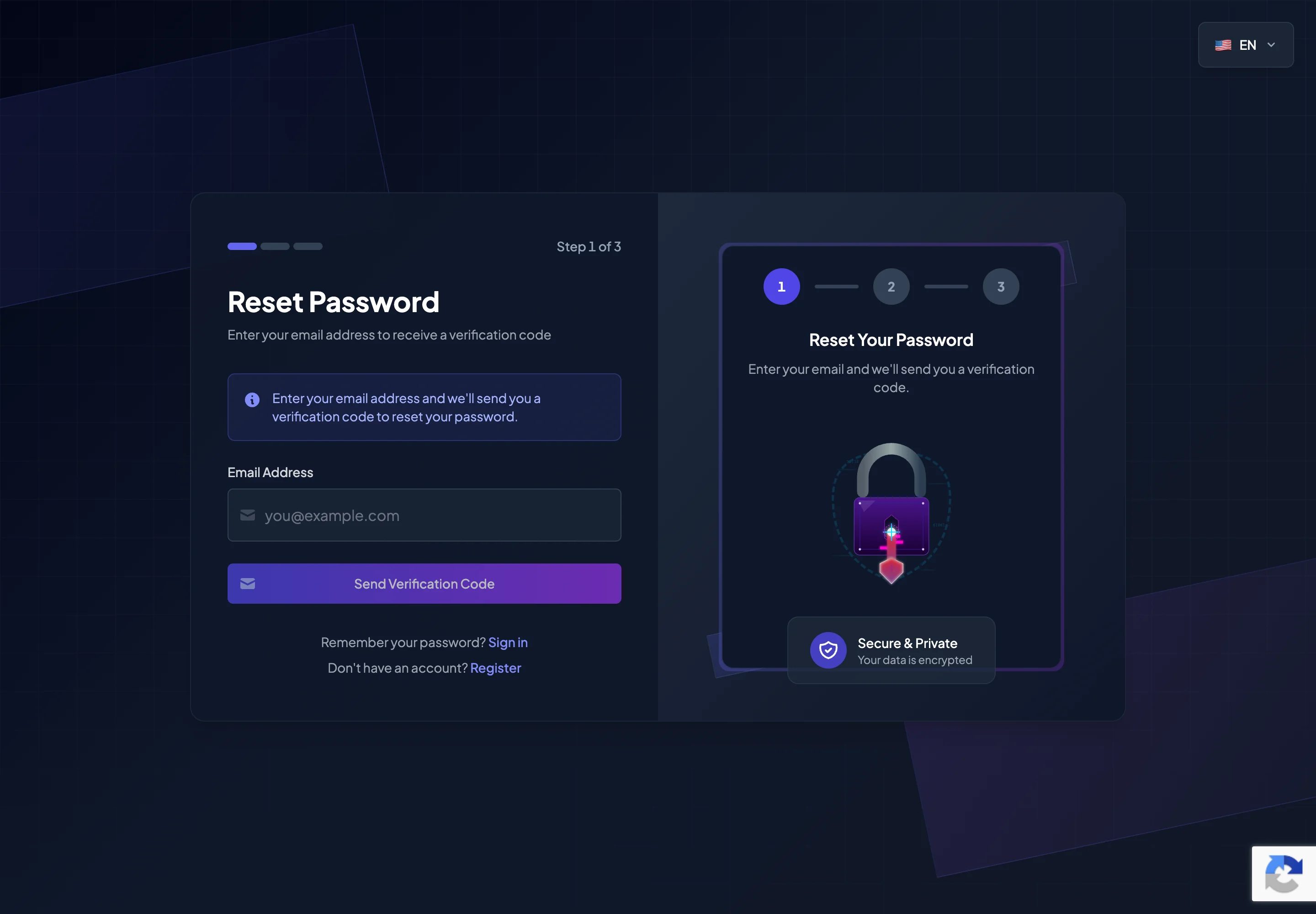
Reset steps
Section titled “Reset steps”- Open the Sign In page.
- Select Forgot password?
- Enter the registered Email Address.
- Select Continue.
- Check your email.
- Enter the 6-digit Verification Code.
- Select Verify Code.
- Enter the New Password.
- Enter it again in Confirm New Password.
- Complete the reset process.
- Return to Sign In and use the new password.
If the reset email does not arrive
Section titled “If the reset email does not arrive”- Check the primary inbox.
- Check Spam or Junk.
- Confirm that the Email Address was entered correctly.
- Wait a few minutes.
- Do not request too many codes in rapid succession.
- Use Resend code when the timer allows it.
- Contact Customer Support if the email still does not arrive.
Requirements for the new password
Section titled “Requirements for the new password”The new password should:
- Be different from the old password.
- Be different from your email password.
- Be different from passwords used for wallets or exchanges.
- Contain at least 8 characters.
- Include uppercase and lowercase letters.
- Include a number and a special character.
- Contain no spaces.
- Avoid easily guessed personal information.
- Be stored in a password manager when appropriate.
After resetting the password
Section titled “After resetting the password”- Sign in again.
- Review any security alert email.
- Confirm that 2FA is still enabled as expected.
- Check that the correct Telegram account is still linked.
- Review Balance History if you suspect unauthorized access.
- Sign out unknown devices if the feature is available.
- Change your email password if the email account may also be compromised.
Phishing warning
Section titled “Phishing warning”Do not enter a new password through an unknown link.
Before resetting, confirm that:
- The URL belongs to the official website.
- The browser does not display a security warning.
- The reset email came from an official source.
- No one is asking you to send them the Verification Code or password.
Customer Support never needs your new password.