
Install the App on Android
On Android, use Google Chrome to install BrokerIG as a web app.
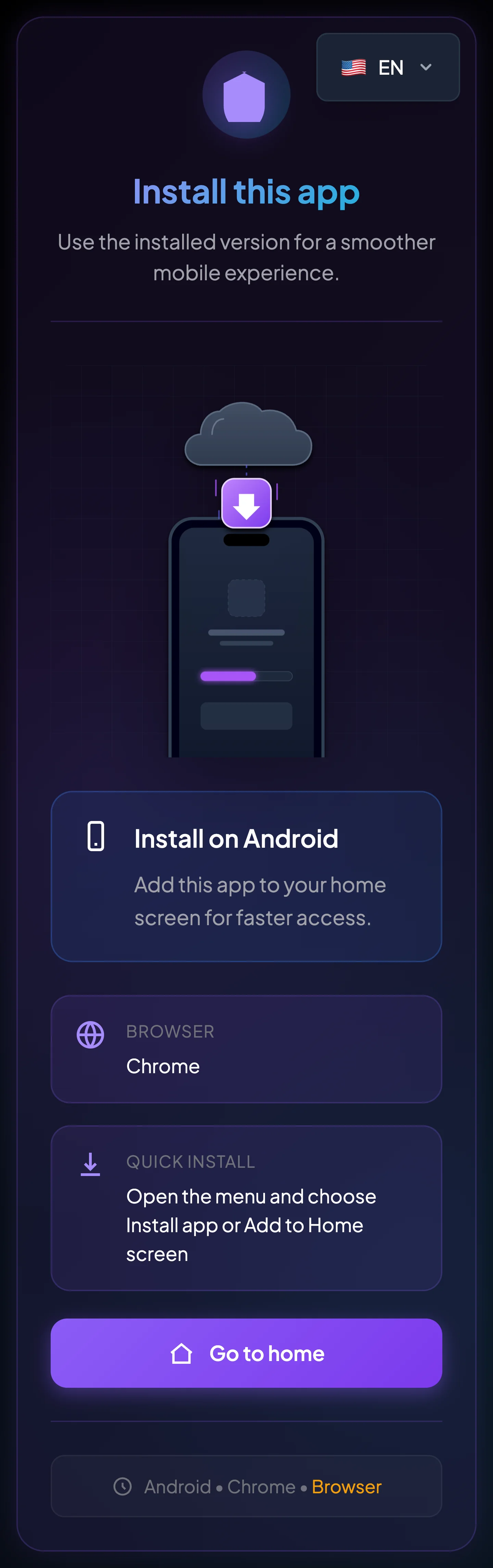
Install with Chrome
Section titled “Install with Chrome”- Open Chrome on the Android device.
- Visit
__PLATFORM_WEBSITE__or the Install page. - Wait for the page to finish loading.
- Open the three-dot browser menu.
- Select Install app or Add to Home screen, depending on the Chrome version.
- Review the app name.
- Select Install or Add.
- Return to the home screen or app drawer.
- Open the new BrokerIG icon.
- Sign in.
The exact menu label may vary, but both options add BrokerIG to the device.
If the page shows a direct installation button
Section titled “If the page shows a direct installation button”Some devices display Install now on the page or an install icon in the browser toolbar.
When it appears:
- Select the installation button.
- Review the app name.
- Select Install.
- Open the icon after installation.
If you only see Copy link
Section titled “If you only see Copy link”When the Install page is opened on a desktop or unsupported browser, it may display Copy link instead of an installation button.
- Select Copy link.
- Send the link to your Android phone.
- Open it in Chrome.
- Follow the Chrome installation steps.
Confirm that installation succeeded
Section titled “Confirm that installation succeeded”Installation is complete when:
- A BrokerIG icon appears on the home screen or in the app drawer.
- The icon opens a separate app-like window.
- You no longer need to enter the URL manually.
- You can sign in and use the platform normally.
Common Android issues
Section titled “Common Android issues”| Issue | What to do |
|---|---|
| Install app or Add to Home screen is missing | Update Chrome, reload the page, and confirm that the official site is open. |
| Only a simple shortcut is created | The browser or device may support only a home-screen shortcut. |
| The icon opens an ordinary browser tab | Remove the old shortcut and install again from Chrome. |
| The page is blank or shows stale content | Close the app, reopen it, and clear site cache if necessary. |
| Notifications do not arrive | Check Android notification permissions, Chrome/PWA permissions, and BrokerIG notification settings. |
Can another Android browser be used?
Section titled “Can another Android browser be used?”Other browsers may support app installation, but Chrome usually provides the most consistent Android flow.
If another browser causes installation problems, repeat the process in Chrome.
Remove the app from Android
Section titled “Remove the app from Android”- Press and hold the BrokerIG icon.
- Select Uninstall, Remove, or Remove from Home, depending on the device.
- Confirm the action.
Removing the installed app does not delete your BrokerIG account. You can still sign in through a browser or install it again later.