
Install the App
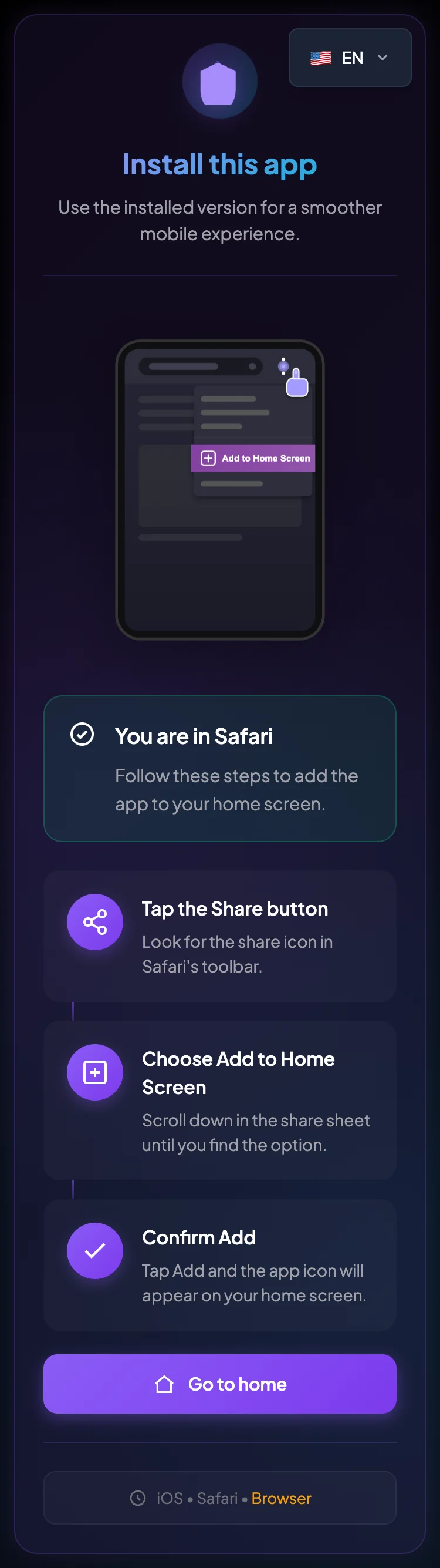
BrokerIG can be installed on a personal device. After installation, you can open the platform from a home-screen icon like an app.
What is the installed app?
Section titled “What is the installed app?”Technically, BrokerIG is a Progressive Web App (PWA), which is a web app optimized to provide an installed, app-like experience.
After installation, you can:
- Open BrokerIG from a home-screen icon.
- Launch it faster.
- Use an interface with fewer visible browser controls.
- Get a more app-like mobile experience.
- Use supported notifications and offline-ready resources.
It remains a web app. You still need an internet connection, an account, a password, and 2FA just as you do in a browser.
When should you install the app?
Section titled “When should you install the app?”Installation is useful when you:
- Open the Dashboard frequently.
- Monitor direct investments.
- Check balances, deposits, or withdrawals.
- Want faster access from your phone.
- Want to keep BrokerIG separate from other browser tabs.
- Prefer an app-like experience without a separate native app.
Supported devices
Section titled “Supported devices”| Device | Recommended browser |
|---|---|
| Android | Chrome |
| iPhone/iPad | Safari |
| Desktop | Chrome, Edge, or Safari on macOS, depending on the operating system |
The exact experience depends on the device, browser, and operating system.
What does the Install page show?
Section titled “What does the Install page show?”The Install page can detect the current device and display the relevant instructions.
It may show:
- The current device.
- The current browser.
- Whether BrokerIG is running in Browser or installed PWA mode.
- An Install now button when native installation is supported.
- A Copy link button when the link should be opened on another device.
- Step-by-step Android or iOS instructions.
Does installation change the account?
Section titled “Does installation change the account?”No. Installation only adds a shortcut or installed web app to the device.
It does not:
- Create a new account.
- Change the referrer.
- Change the Balance.
- Enable 2FA automatically.
- Sign you in automatically after a session expires.
- Replace account security.
General installation steps
Section titled “General installation steps”- Open
__PLATFORM_WEBSITE__or the Install page. - Confirm that it is the official website.
- Use the recommended browser for your device.
- Follow the installation instructions.
- Open the BrokerIG icon from the home screen.
- Sign in.
- Confirm that the app works correctly.
- Enable notifications if the platform and browser support them.
If the install button is not available
Section titled “If the install button is not available”- Confirm that you are using the recommended browser.
- Use Chrome on Android.
- Use Safari on iPhone or iPad.
- Reload the page.
- Open the dedicated Install page.
- Use the browser’s manual Add to Home screen option.
- Update the browser or operating system if it is outdated.
Installation and security
Section titled “Installation and security”After installation:
- Do not allow another person to unlock and use your device.
- Enable a screen lock.
- Do not save your password on an unknown device.
- Enable 2FA.
- Do not install from an unknown link.
- Confirm that the icon opens the official website.
If the phone is lost, change your password and review account security.