
Sign In with 2FA
Two-Factor Authentication (2FA) is a second security layer in addition to your password. If 2FA is enabled, BrokerIG requests an Authentication Code after the correct username and password are entered.
The 6-digit code is normally generated by an authenticator app on your phone.
Enter the Authentication Code
Section titled “Enter the Authentication Code”- Open the Sign In page.
- Enter your Username and Password.
- Select Sign in.
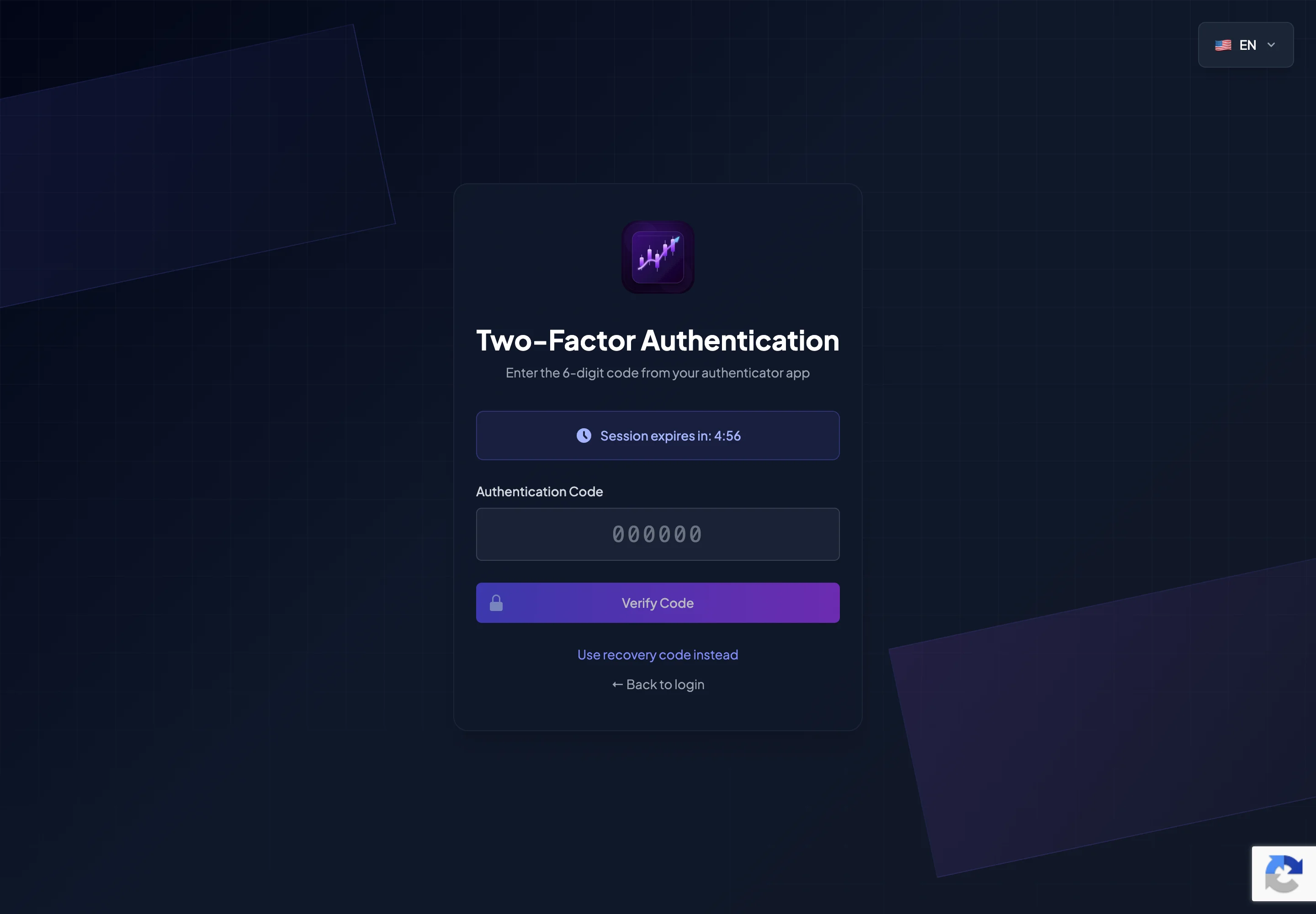
- When the Two-Factor Authentication screen appears, open your authenticator app.
- Find the BrokerIG entry.
- Enter the current 6-digit Authentication Code.
- Select Verify Code.
Authentication Codes change after a short time. If the current code is about to expire, wait for the next code before submitting it.
If the 2FA code is invalid
Section titled “If the 2FA code is invalid”| Possible cause | What to do |
|---|---|
| The code was entered incorrectly | Enter it again carefully. |
| The code expired | Wait for the next code and try again. |
| The wrong authenticator entry was selected | Confirm that you selected BrokerIG. |
| The phone clock is incorrect | Enable automatic date and time on the phone. |
| You are using an old authenticator device | Use the device that was configured when 2FA was enabled. |
| The 2FA device is unavailable | Select Use recovery code instead. |
| The 2FA session expired | Return to Sign In and start again. |
Never share your 2FA code
Section titled “Never share your 2FA code”Do not send an Authentication Code to:
- Your referrer.
- A community group.
- Customer Support.
- An unknown Telegram bot.
- Any website other than the official BrokerIG website.
The Authentication Code proves that you control the security device. Anyone who has both your password and 2FA code may be able to access your account.
When should you use a Recovery Code?
Section titled “When should you use a Recovery Code?”Use a Recovery Code when:
- You lost the phone containing the authenticator app.
- You changed phones without transferring 2FA.
- The authenticator app was deleted.
- Correct Authentication Codes continue to be rejected.
- You cannot access the authenticator app.
After signing in with a Recovery Code, open Security Settings and configure 2FA again.