
Sign In with a Username and Password
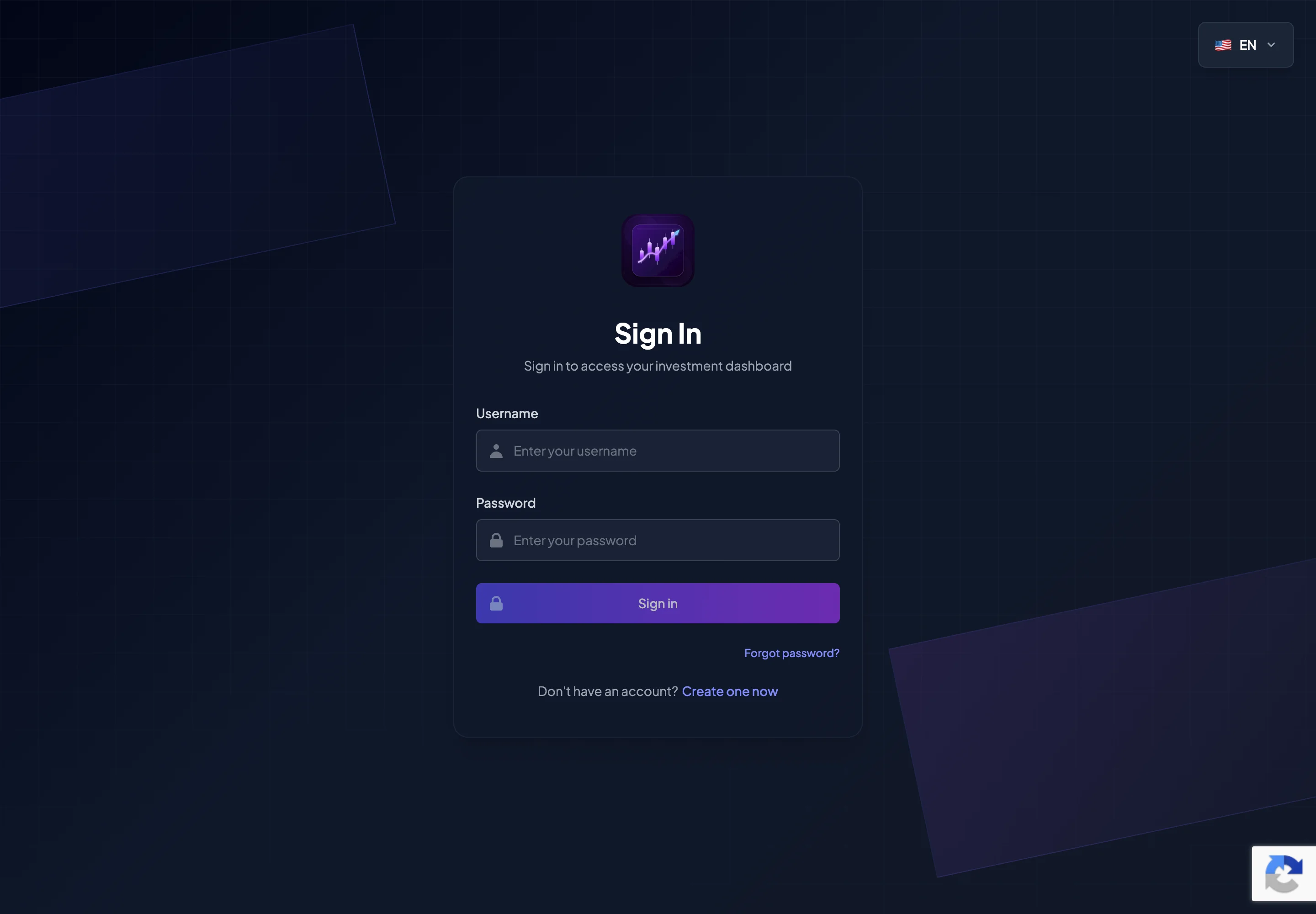
After creating an account, you can sign in to BrokerIG with your username and password.
If 2FA is enabled, the system will request an Authentication Code or a Recovery Code after your username and password are accepted.
Sign-in steps
Section titled “Sign-in steps”- Open
__PLATFORM_WEBSITE__. - Select Sign in.
- Enter your Username.
- Enter your Password.
- Confirm that you are on the official website.
- Select Sign in.
- If 2FA is enabled, enter the Authentication Code on the next screen.
- After successful authentication, the portal opens.
When is 2FA required?
Section titled “When is 2FA required?”You may need to enter a 2FA code when:
- Two-Factor Authentication is enabled in your security settings.
- The system detects unusual sign-in activity.
- The security policy requires additional verification.
Even when 2FA is not currently enabled, you should enable it after signing in.
Links on the Sign In page
Section titled “Links on the Sign In page”| Link | When to use it |
|---|---|
| Create one now | When you do not have an account. |
| Forgot password? | When you cannot remember your password. |
| Language selector | When you want to change the interface language. |
You need a valid Invitation Code before creating a new account.
Common sign-in issues
Section titled “Common sign-in issues”| Issue | Possible cause | What to do |
|---|---|---|
| Invalid username or password | Typing error, Caps Lock, or the wrong username | Check the details and try again. |
| Account verification incomplete | Email verification was not completed | Check your email and complete verification. |
| Authentication Code not accepted | Wrong authenticator entry, expired code, or incorrect device time | Check the authenticator app or use a Recovery Code. |
| Account temporarily restricted | Too many failed attempts or a security review | Contact Customer Support. |
| Page does not load | Weak connection, browser issue, or stale cache | Reload, try another browser, or check your connection. |
| Security verification failed | Network issue or an ad blocker interfering with verification | Check the connection, disable the blocker for the official site, and try again. |
What not to do when you cannot sign in
Section titled “What not to do when you cannot sign in”Do not:
- Create multiple replacement accounts.
- Send your password to another person for testing.
- Send a Verification Code or 2FA code to Customer Support.
- Sign in on a public device.
- Use a sign-in link from an unknown message.
- Enter account details on a domain that is not the official website.
After your first sign-in
Section titled “After your first sign-in”Complete these steps as soon as possible:
- Open Profile Settings.
- Review your email address and account information.
- Change your avatar if needed.
- Select your display language.
- Enable 2FA.
- Save your Recovery Codes.
- Link the Telegram bot.
- Install the app on your personal device.
Sign out after use
Section titled “Sign out after use”When using a device that is not yours:
- Always sign out when finished.
- Do not save the password in the browser.
- Do not select Remember me.
- Clear browsing data if necessary.
- Change your password if you believe the device was unsafe.