
Sign In with a Recovery Code
A Recovery Code is a backup code that can be used when you cannot obtain a 2FA code from your authenticator app.
Use a Recovery Code only when you need to restore access, such as after losing your phone or losing access to the authenticator app.
When is a Recovery Code needed?
Section titled “When is a Recovery Code needed?”You may need one when:
- The phone containing your authenticator app is lost.
- The phone is damaged or reset.
- The authenticator app was deleted accidentally.
- You changed phones without transferring 2FA.
- You cannot obtain a current Authentication Code.
- Authentication Codes remain invalid even after the device time is synchronized.
Sign in with a Recovery Code
Section titled “Sign in with a Recovery Code”- Open the Sign In page.
- Enter your Username and Password.
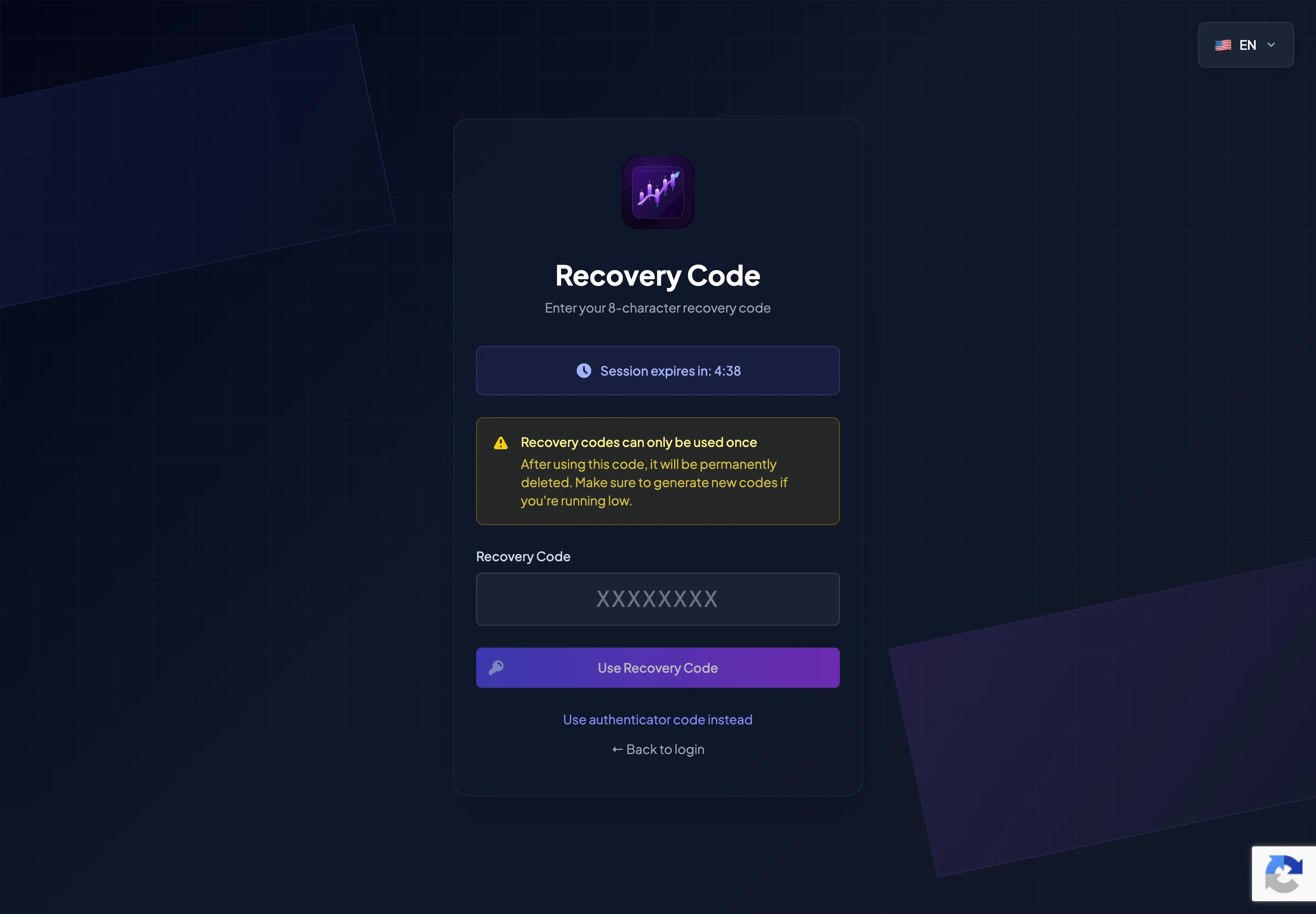
- When the 2FA screen appears, select Use recovery code instead.
- Enter an unused 8-character Recovery Code.
- Select Verify Code.
- If the code is valid, the system signs you in.
- Reconfigure 2FA immediately after entering the account.
After using a Recovery Code
Section titled “After using a Recovery Code”After signing in:
- Open Security Settings.
- Disable the previous 2FA setup if you no longer control the device.
- Enable 2FA on the new device.
- Save the new Recovery Codes if the system generates them.
- Review sign-in history if this feature is available.
- Change your password if you suspect that the account was exposed.
Can a Recovery Code be reused?
Section titled “Can a Recovery Code be reused?”Recovery Codes can normally be used only once. After a code is used, it is permanently invalidated.
Therefore:
- Do not test a Recovery Code unnecessarily.
- Do not send it through chat.
- Do not store it together with your password.
- Do not keep it in an unsecured screenshot that may be uploaded to cloud storage.
If both 2FA and Recovery Codes are unavailable
Section titled “If both 2FA and Recovery Codes are unavailable”If you have lost both the authenticator device and all Recovery Codes:
- Do not create a replacement account.
- Open the Contact Support page.
- Explain that you no longer have access to 2FA.
- Provide the account email address.
- Complete the official identity or ownership verification process.
- Never send your password, Verification Code, or private key.
Manual account recovery may take additional time because it is a security-sensitive process.
Store Recovery Codes securely
Section titled “Store Recovery Codes securely”Recommended storage options:
- A trusted password manager.
- A printed copy stored in a secure location.
- An encrypted file or secure note.
- A location separate from the authenticator device.
Avoid storing them:
- In personal chat messages.
- In an unsecured email account.
- In screenshots.
- In a plainly named file such as
recovery-code.txt. - On a shared device.